Backup Gateways
A Backup Gateway lets the instances in your eCloud VPC send agent-level backups to ANS Secure Backup. This page explains what a Backup Gateway is, when to use one, and how to set one up from Glass, the API or the ANS CLI.
What a Backup Gateway is
A Backup Gateway is a gateway that ANS deploys on your router. It carries backup traffic securely from the backup agent on your instances to ANS Secure Backup.
VPC
└── Router
    ├── Backup Gateway ──────────► ANS Secure Backup
    └── Network
        ├── Instance (backup agent)
        ├── Instance (backup agent)
        └── Instance (backup agent)
A Backup Gateway is used for agent-level (file-level) backup. This is separate from VM-level backup, which snapshots the whole virtual machine and needs no gateway. An instance can use either kind of backup, or both.
Why it exists and typical use cases
The gateway gives the backup agent inside each instance a private, managed route to Secure Backup. Typical use cases are:
- Restoring individual files, folders or application data, rather than the whole virtual machine.
- Protecting many instances behind one router with a single gateway.
- Combining agent-level backup with VM-level backup, so you can recover both whole machines and individual items.
- Keeping backup traffic on private networks. Your instances do not need a floating IP to be backed up.
VM-level and agent-level backup
| VM-level backup | Agent-level backup | |
|---|---|---|
| Protects | The whole virtual machine | Files and applications inside the instance |
| Needs a Backup Gateway | No | Yes |
| Needs an agent in the instance | No | Yes |
| How it runs | A daily snapshot, each kept for 30 days | You pick from a predefined list of schedules |
| Restore | Whole virtual machine | Individual files and application data |
| Instance field | backup_vm_enabled | backup_agent_enabled |
For more on the two approaches, see VM-level backups and file-level backups.
Before you start
You need:
- A Secure Backup organisation on your account. Without one, creating a Backup Gateway fails with a
412error. - A router in an availability zone that supports Secure Backup, and instances on a network behind that router.
- For the CLI examples, ANS CLI v1.33.0 or later.
- For the API examples, an API key with read/write access to eCloud.
The Automating eCloud VPC with the ANS CLI guide explains how to install the CLI and supply your API key. The curl examples on this page use the same shorthand as that guide:
export ECLOUD="https://api.ukfast.io/ecloud/v2"
H=(-H "Authorization: ${ANS_API_KEY}" -H "Content-Type: application/json" -H "Accept: application/json")
All IDs in the examples (vpc-abcdef12, rtr-abcdef12, bgw-abcdef12 and so on) are placeholders. Replace them with your own.
Set up a Backup Gateway
The workflow has four steps: choose a specification, create the gateway, enable agent backup on the instance, then verify. Each step has tabs for Glass, the API and the CLI. The tab you pick is used for every step.
1. Choose a specification
The specification sets the size of the gateway. Each one has an id, a name, a description and an order. For example, "Medium, Recommended for up to 50 Instances". The specification must be offered in the availability zone of your router, otherwise creating the gateway fails with a 422 error.
- Glass
- API
- CLI
You choose the specification on the create form in the next step, under Choose your specification.
List the specifications offered in an availability zone (recommended):
curl -s "${H[@]}" "$ECLOUD/availability-zones/az-abcdef12/backup-gateway-specifications" | jq
Or list all specifications:
curl -s "${H[@]}" "$ECLOUD/backup-gateway-specs" | jq
ans ecloud backupgateway spec list
2. Create the gateway
Create the gateway on the router that your instances sit behind. The gateway takes its availability zone from the router. You can give it an optional name.
- Glass
- API
- CLI
- Go to eCloud > Networking > Backup Gateways and click Create Backup Gateway.
- Enter a name (optional), then select the VPC and the router.
- Under Choose your specification, select a specification.
- Click Create Backup Gateway.
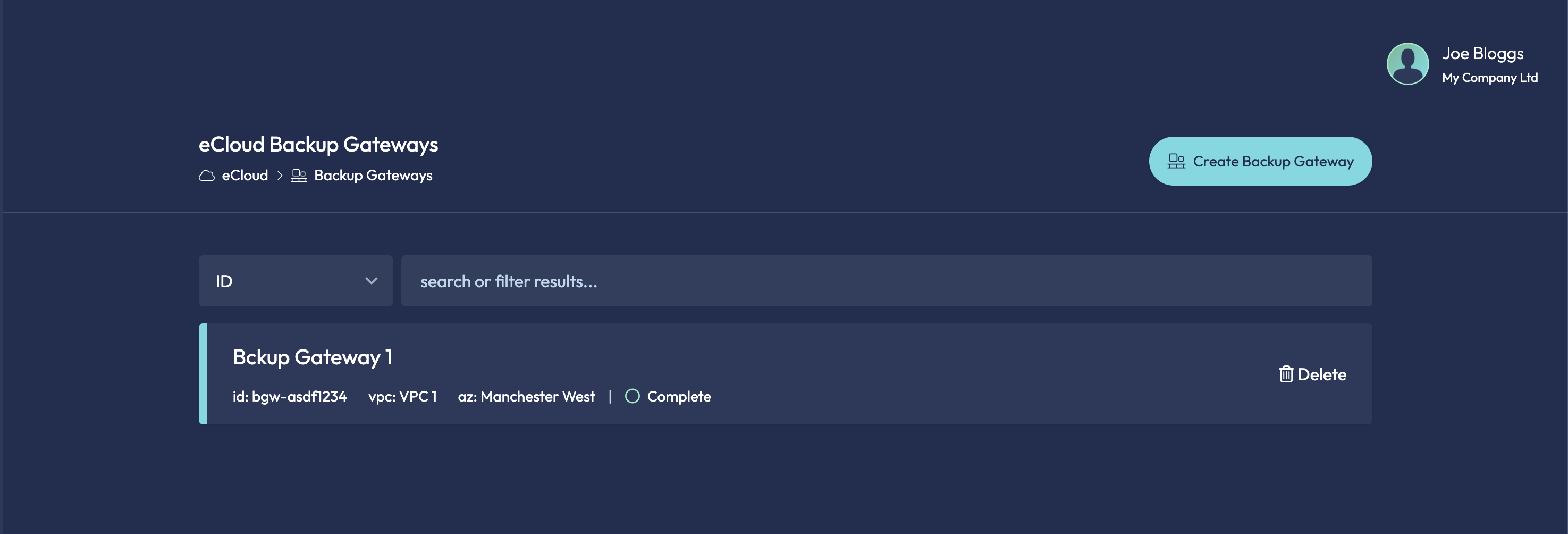
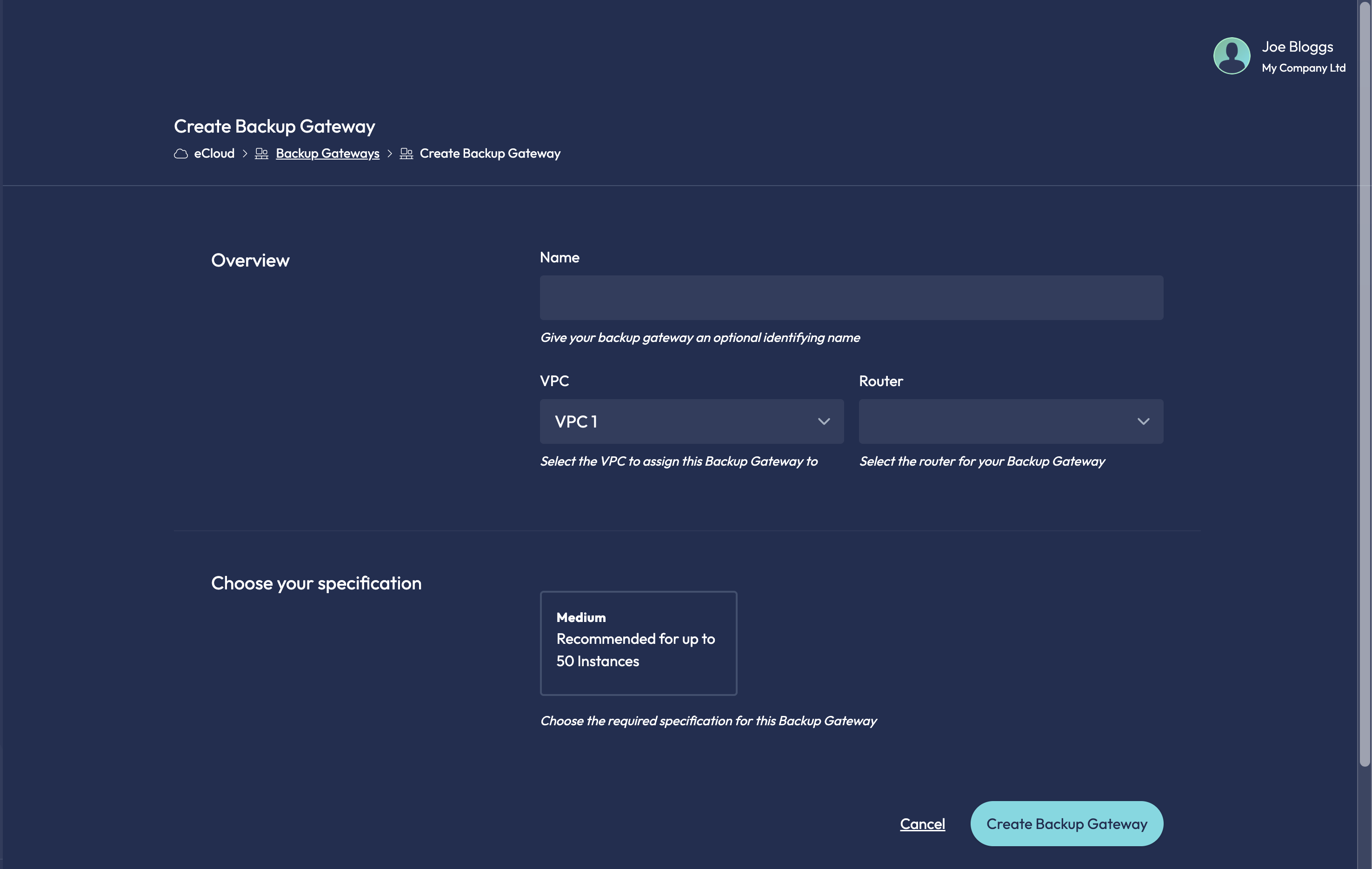
The gateway is ready when its status shows Complete.
curl -s "${H[@]}" -X POST "$ECLOUD/backup-gateways" -d '{
  "name": "demo-backups",
  "vpc_id": "vpc-abcdef12",
  "router_id": "rtr-abcdef12",
  "gateway_spec_id": "bgws-abcdef12"
}' | jq
The API returns 202 with the ID of the gateway and the task that creates it. The gateway is ready when sync.status is complete:
curl -s "${H[@]}" "$ECLOUD/backup-gateways/bgw-abcdef12" | jq '.data.sync'
ans ecloud backupgateway create --vpc vpc-abcdef12 --router rtr-abcdef12 \
  --specification bgws-abcdef12 --name demo-backups --wait
--wait makes the command return once the gateway is ready. The automation guide covers waiting and scripting in more detail.
3. Enable agent backup on an instance
The gateway must be ready, and in the same VPC, availability zone and router as the instance. Attaching the gateway (backup_gateway_id) and enabling the agent (backup_agent_enabled) are two settings. Enabling the agent needs a gateway, either sent in the same request or already set on the instance.
- Glass
- API
- CLI
For an existing instance:
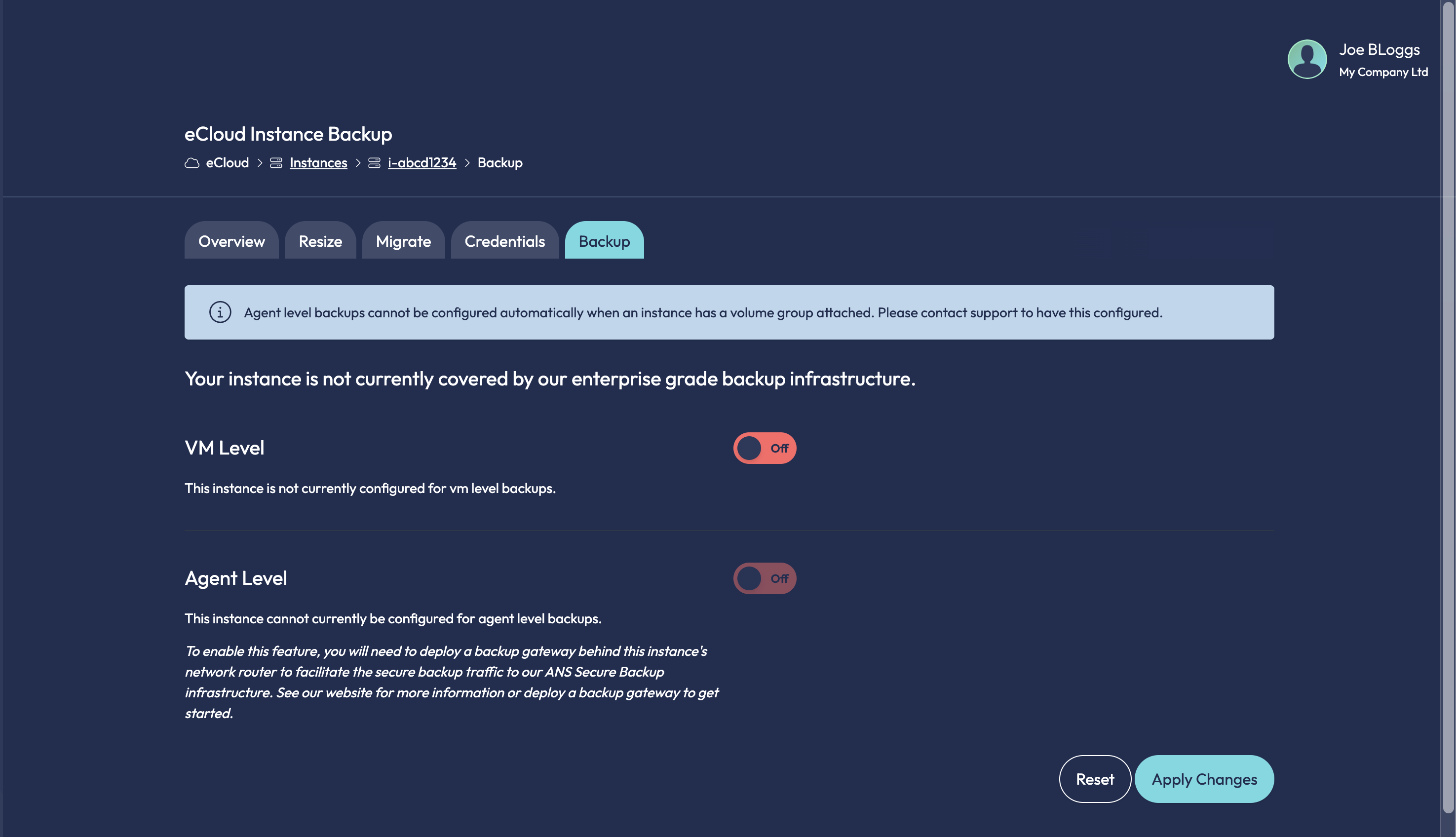
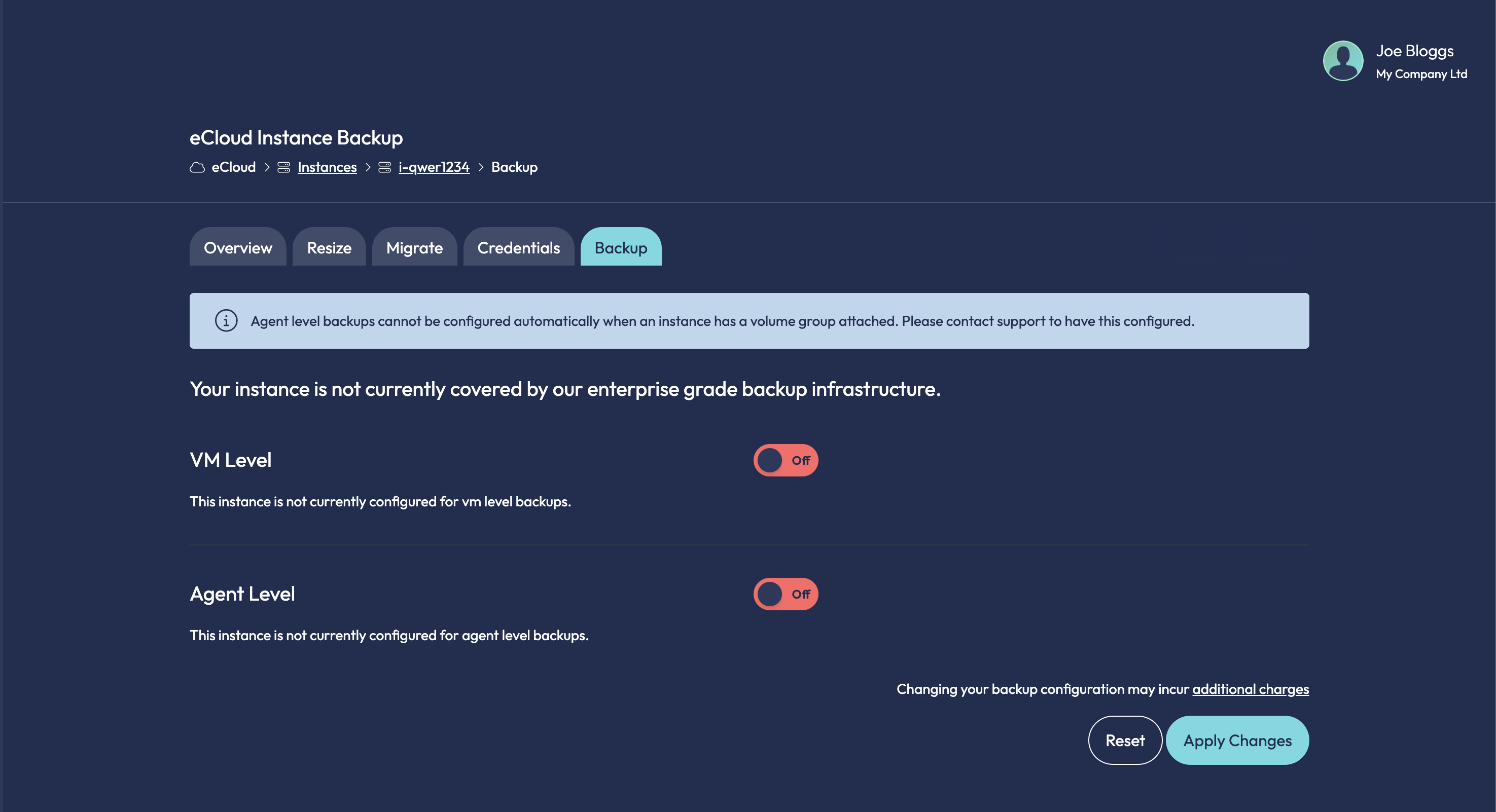
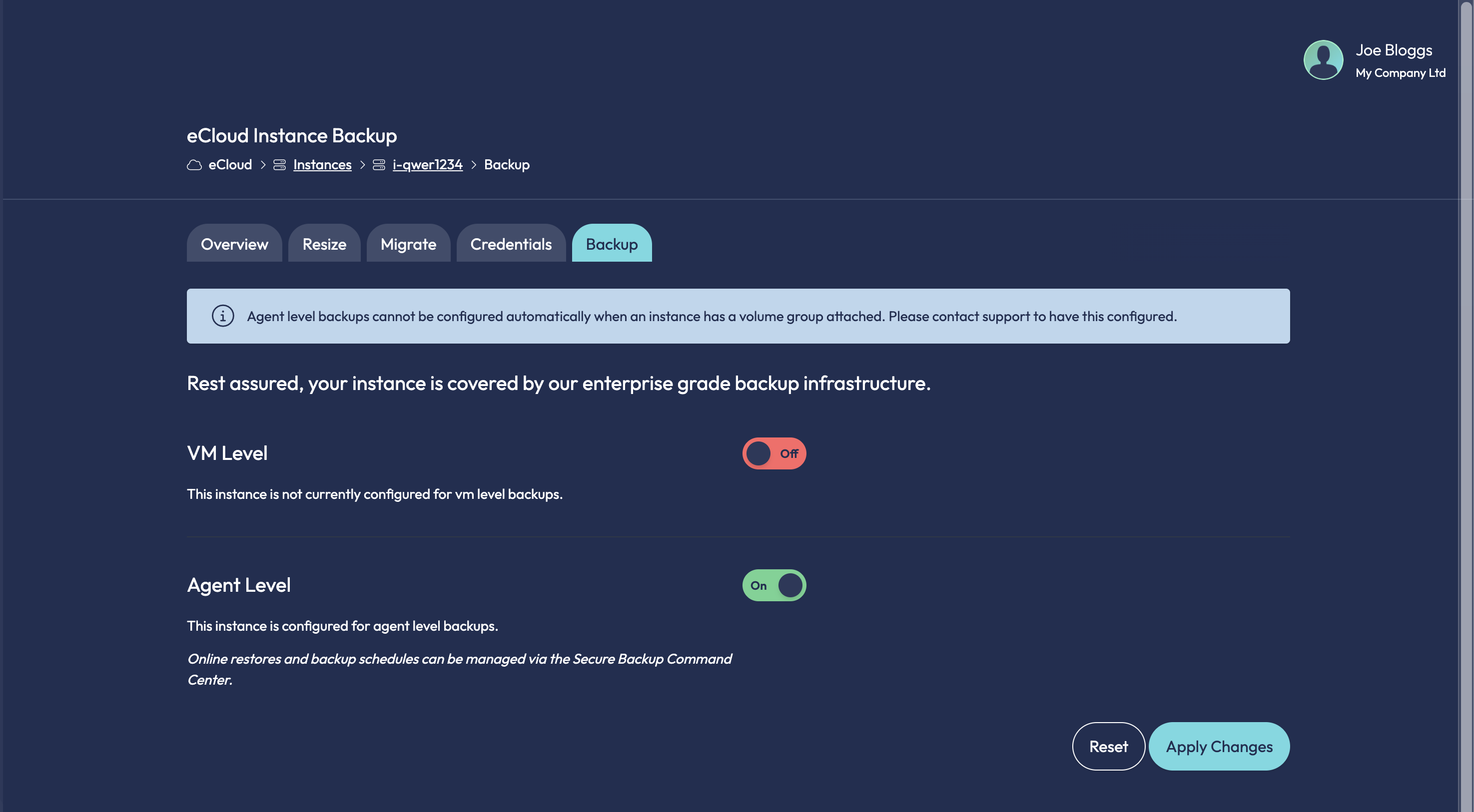
- Open the instance and go to the Backup tab.
- Turn on the Agent Level toggle.
- Click Apply Changes.
Glass selects the gateway on the instance's router for you. If there is no gateway on the router, the toggle is disabled and the tab tells you to deploy one first.
The Backup tab always shows an information banner about volume groups. It only applies if the instance has a volume group attached. In that case, contact ANS support to have the agent configured.
When launching an instance:
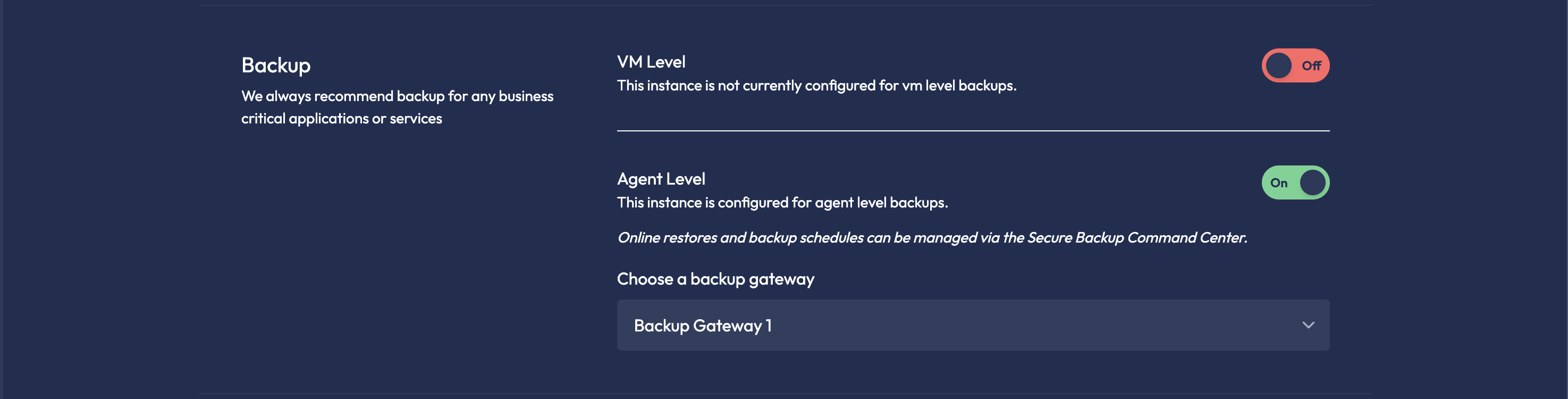
In the Backup section of the launch form, turn on Agent Level, then select a gateway under Choose a backup gateway.
Patch an existing instance:
curl -s "${H[@]}" -X PATCH "$ECLOUD/instances/i-abcdef12" \
  -d '{"backup_gateway_id": "bgw-abcdef12", "backup_agent_enabled": true}' | jq
To set it when creating an instance, send the same two fields in the POST /instances request body. If the instance already has the gateway set, send {"backup_agent_enabled": true} on its own.
ans ecloud instance update i-abcdef12 --backup-gateway-id bgw-abcdef12 --wait
This also enables the agent. You can also pass --backup-gateway-id to ans ecloud instance create. If the instance already has a gateway but the agent is not enabled, use --enable-agent-backups:
ans ecloud instance update i-abcdef12 --enable-agent-backups --wait
4. Verify
The agent is installed by a separate task named instance_enable_backup, which runs after the instance has finished its own deployment or update. Once the agent is installed and registered, secure_backup on the instance becomes true.
- Glass
- API
- CLI
The Backup tab shows "This instance is configured for agent level backups". Restores and backup schedules are managed in the Secure Backup Command Center.
Check the instance_enable_backup task:
curl -s "${H[@]}" "$ECLOUD/instances/i-abcdef12/tasks?name:eq=instance_enable_backup" | jq '.data[] | {id, name, status}'
Then check the instance:
curl -s "${H[@]}" "$ECLOUD/instances/i-abcdef12" | jq '.data | {backup_vm_enabled, backup_agent_enabled, backup_gateway_id, secure_backup}'
Check the instance_enable_backup task:
ans ecloud instance task list i-abcdef12 --filter name=instance_enable_backup
Then check the instance. --with-backup shows the backup fields, and shows secure_backup as backup_agent_installed:
ans ecloud instance show i-abcdef12 --with-backup
Instance backup fields
| Field | Meaning |
|---|---|
backup_enabled | Legacy field. Use backup_vm_enabled instead. |
backup_vm_enabled | VM-level backup is enabled. |
backup_agent_enabled | Agent-level backup is enabled. Requires a backup_gateway_id. |
backup_gateway_id | The Backup Gateway the instance uses. It cannot be changed once set. |
secure_backup | true once the agent is installed and registered. Shown as backup_agent_installed in the CLI. |
Limits and troubleshooting
| Symptom | Cause and fix |
|---|---|
412 when creating a gateway: "Backup Gateway requires customers organisation to be registered with Commvault." | Your account has no Secure Backup organisation. Contact ANS support to have one set up. |
412 when deleting a gateway | Instances are still attached to it. Gateways cannot be deleted while in use. |
422 when creating a gateway | The specification is not offered in the router's availability zone. Choose one from that zone's specification list. |
422 when assigning a gateway to an instance | The gateway must be in the same VPC, availability zone and router as the instance. |
| "Agent level backups cannot be enabled without setting the backup gateway id" | Send backup_gateway_id with backup_agent_enabled, or set the gateway first. |
| "Instance already has a backup gateway" | An instance's gateway cannot be changed once set. |
| "Agent level backups cannot be disabled" | You cannot disable the agent once secure_backup is true. Contact ANS support. |
The instance_enable_backup task fails | The gateway may not be ready. Wait until its sync.status is complete and try again. |
| The instance has a volume group attached | The agent cannot be configured automatically on these instances. Contact ANS support to have the agent configured. |
Managing and deleting gateways
You can only update the name of a gateway. To delete a gateway, first disable agent backup on every instance that uses it. If the agent is already installed on an instance (secure_backup is true), you cannot disable it yourself. Contact ANS support, or delete the instance. Then delete the gateway from the Backup Gateways list in Glass, or with the API or CLI:
ans ecloud backupgateway delete bgw-abcdef12
curl -s "${H[@]}" -X DELETE "$ECLOUD/backup-gateways/bgw-abcdef12" | jq
A router cannot be deleted while it still has a Backup Gateway.