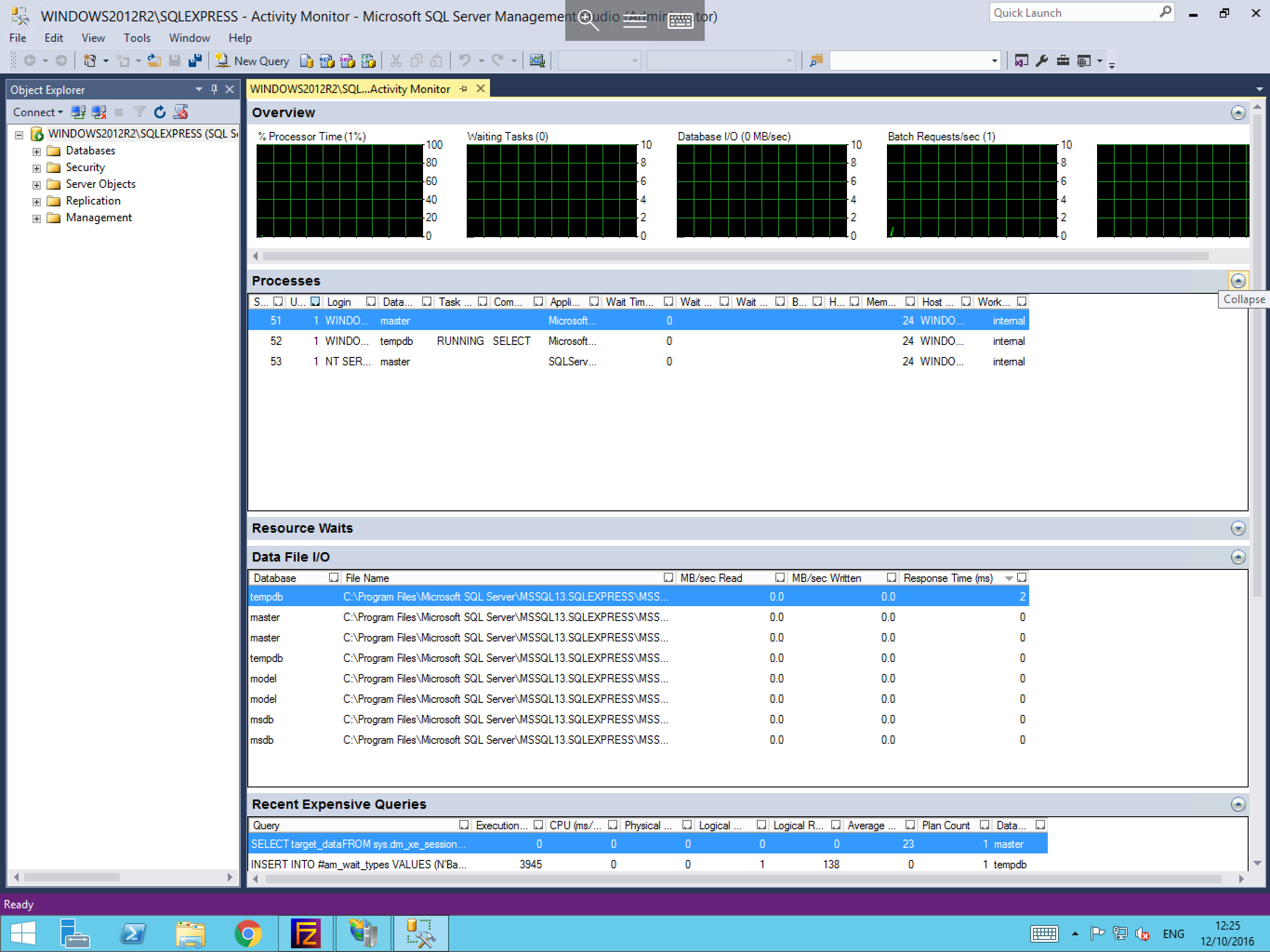
Viewing Microsoft SQL Activity Monitor
Should you be facing performance issues with your database, the Activity Monitor can be a useful tool to help diagnose the root cause of the issue. To access it, follow the below guide.
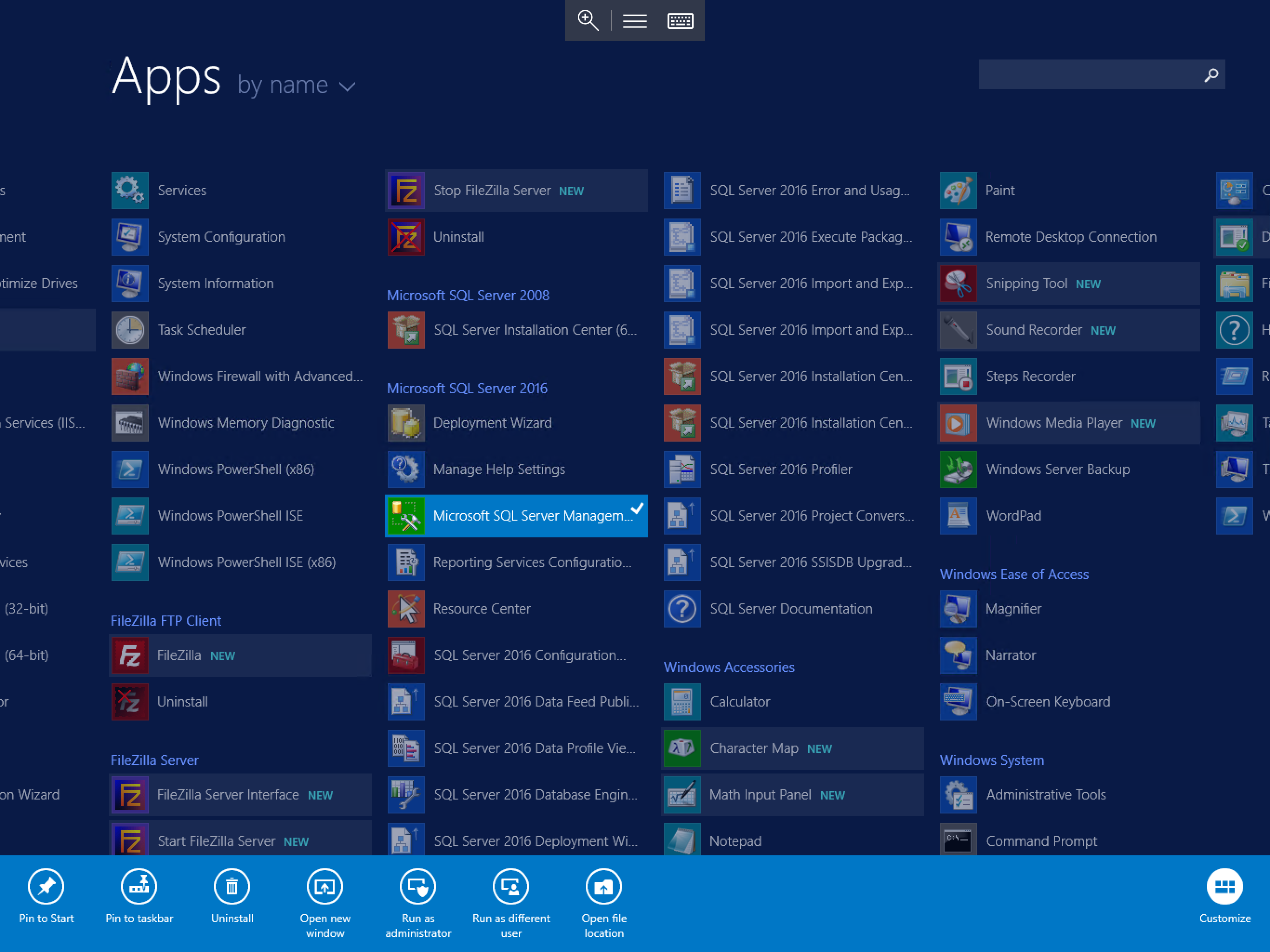
Firstly, you will need to log in to the Microsoft SQL Management Studio. To do this, please select Start, then All Programs, and finally select Microsoft SQL Server Management Studio from the list of available applications.
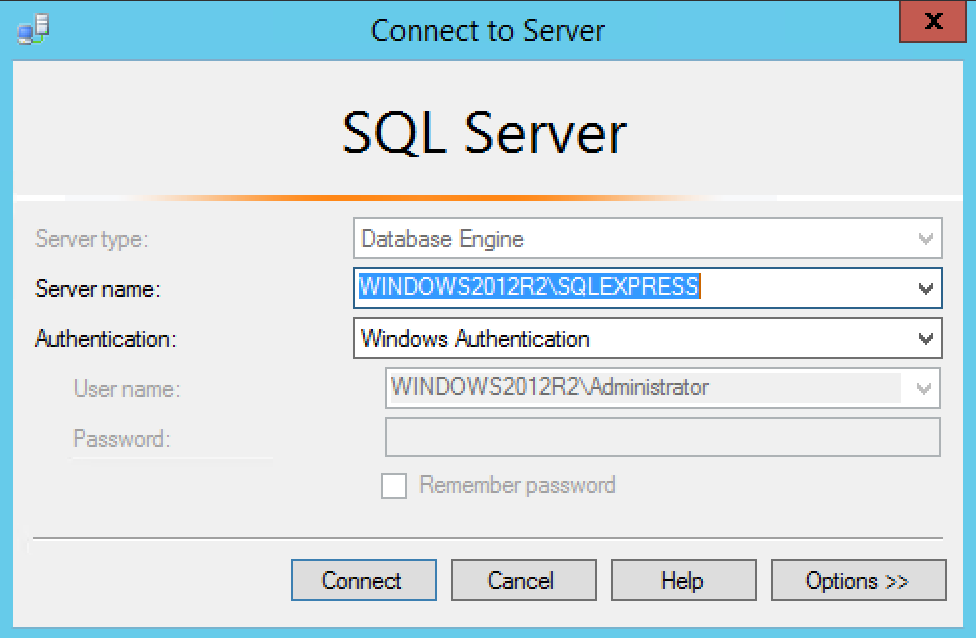
You will now be presented with a login box. You will need to enter the appropriate details to gain access to your MSSQL instance. Once you have entered the correct details, click the Connect button.
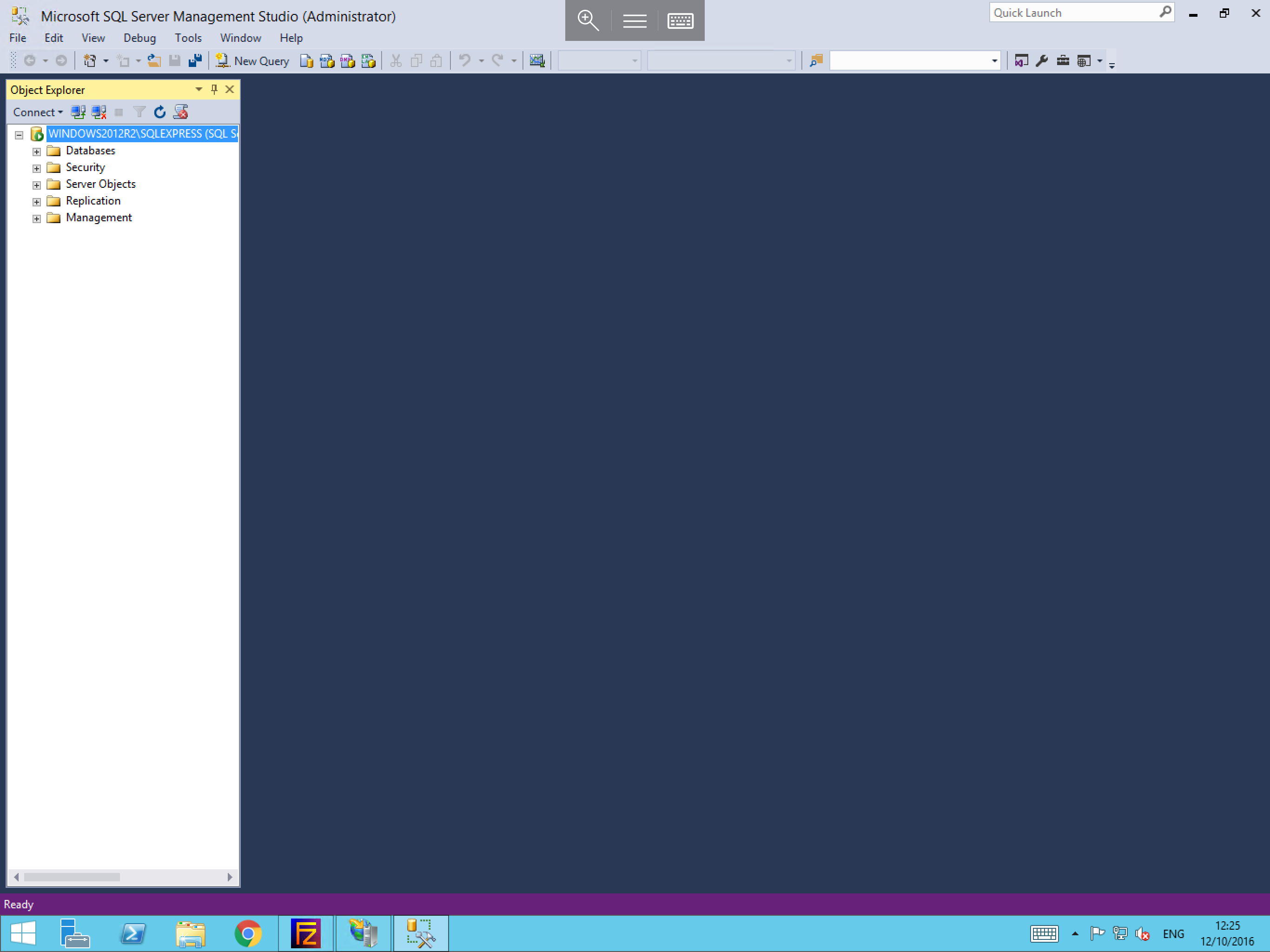
Once logged in, you should be able to view your MSSQL instance in the Object Explorer to the left hand side of the window, as below:
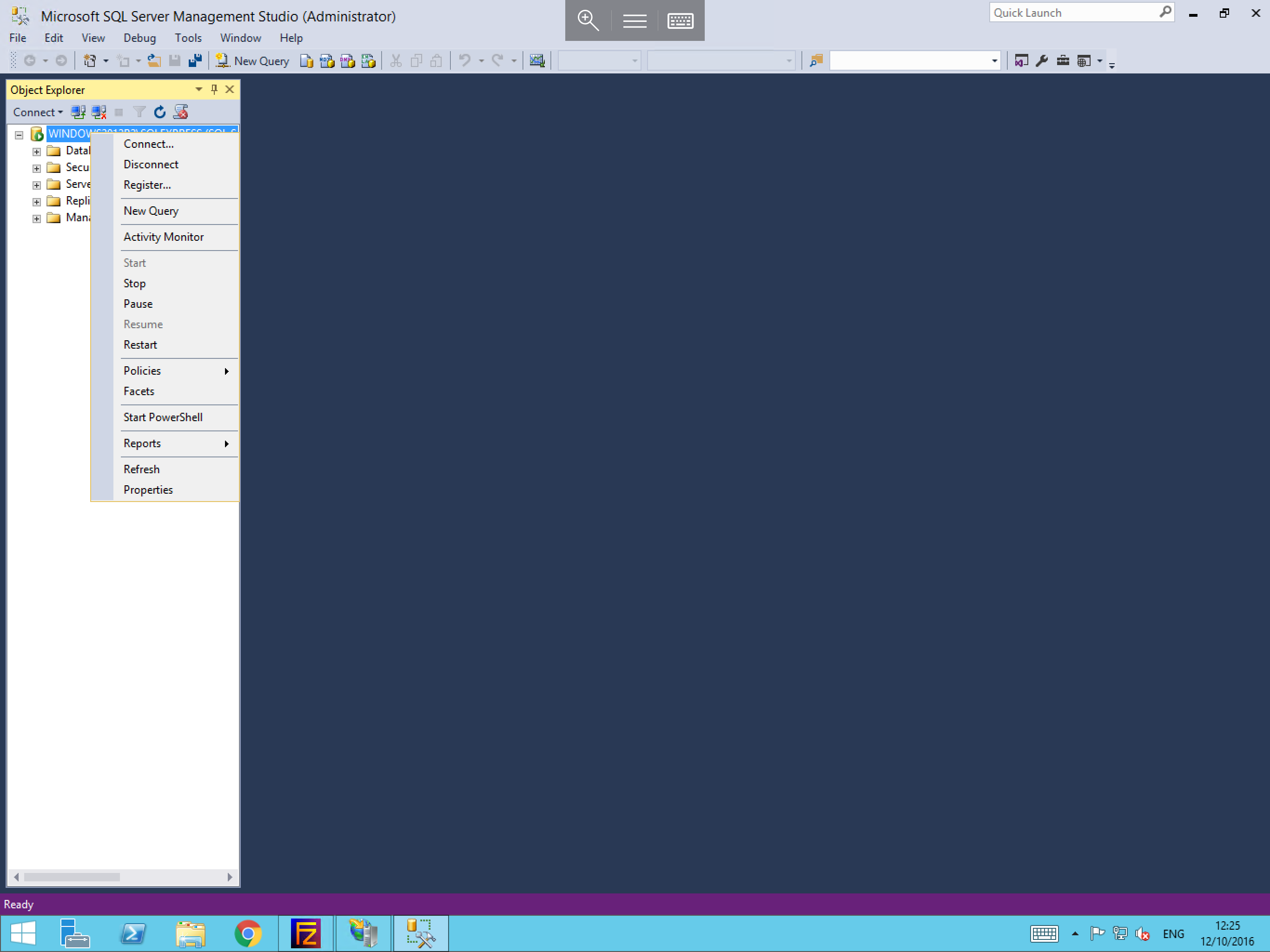
From this view, please select your instance (in this case named WINDOWS2012R2\SQLEXPRESS) and right click it. You should now see additional options for your instance including Activity Monitor, as below. Select this from the list.
You will now be presented with the SQL Server Activity Monitor, which will provide you with a selection of performance related information. You can use this to identify any performance issues and find the root cause of those issues.