How to map a network share
To map a network share, please follow the below guide.
This guide assumes that you have already configured a network share.
Select Start, select This-PC or My Computer depending on the version of Windows which you are using. In the new window, select Computer from the top menu and then select Add a network location as below:
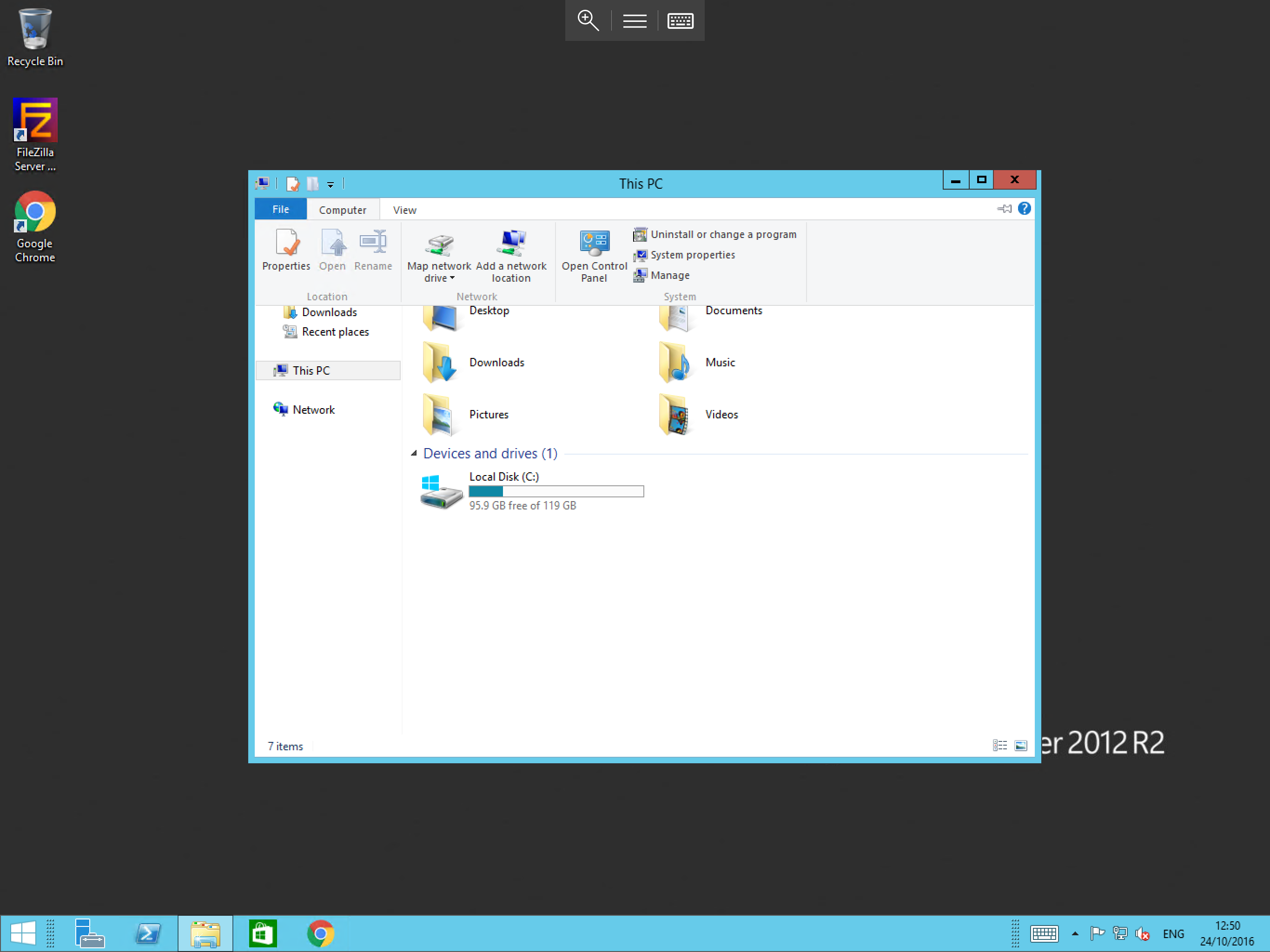
You will now be presented with the Add Network Location wizard. Select Next.
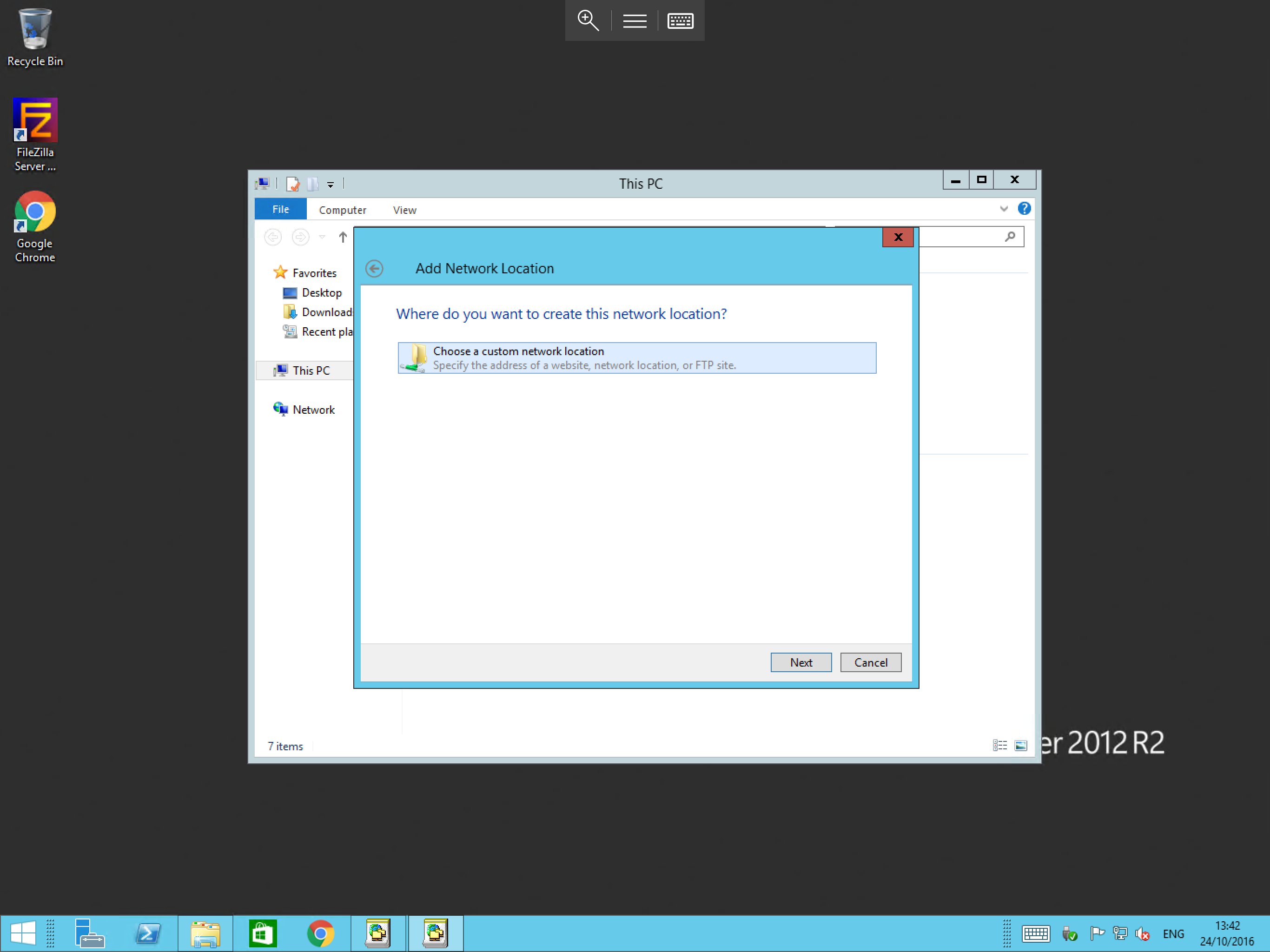
The next window will ask you where you want to create this location. Select Choose a custom network location as below and select Next.
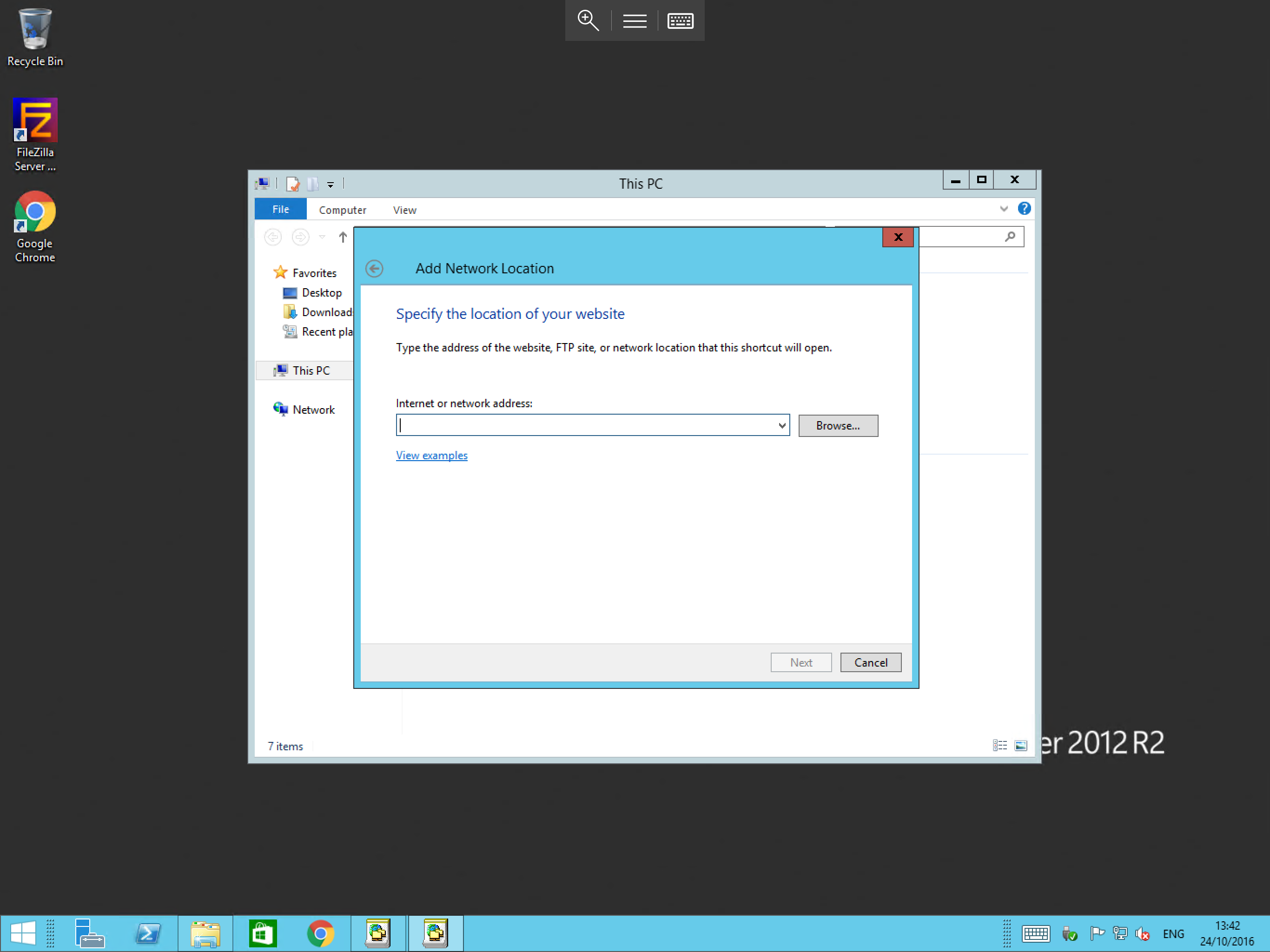
The next page asks you to specify the location in the Internet or network address box as below. Enter the address and path of your share, for example \\server1\remoteshare, and select Next.
You will now be given the option to name this share. Enter a name of your choosing which will allow you to identify the location easily. Once you have done so, select Next.
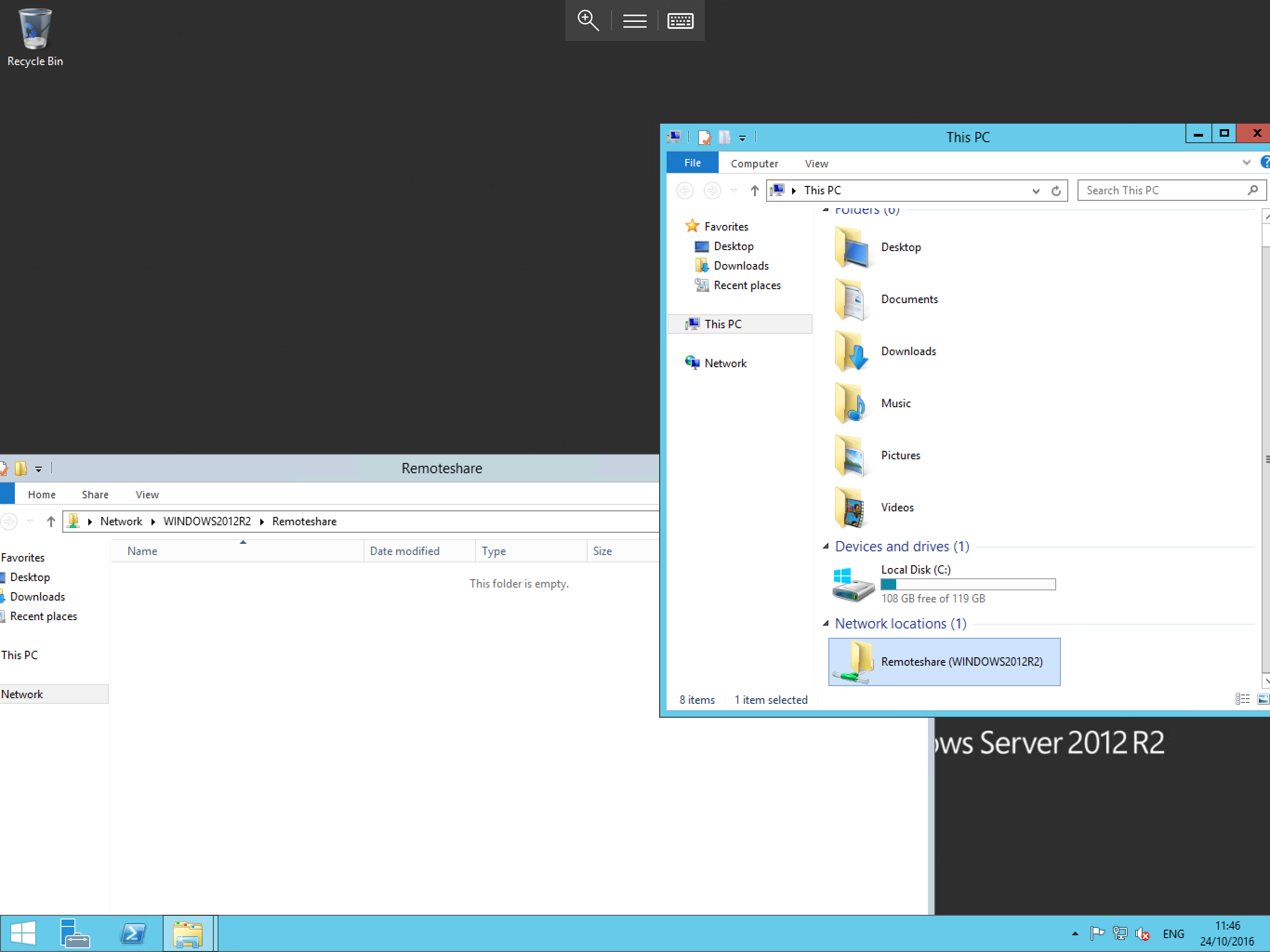
The final pane will confirm that you have created the location. Select Finish and you should now be presented with your share as below.