Encrypt RDP traffic using an SSL certificate
To configure SSL for RDP, different steps are required for different versions of Windows Server. Please view the most suitable section of the guide to meet your needs.
Windows Server 2008 R2
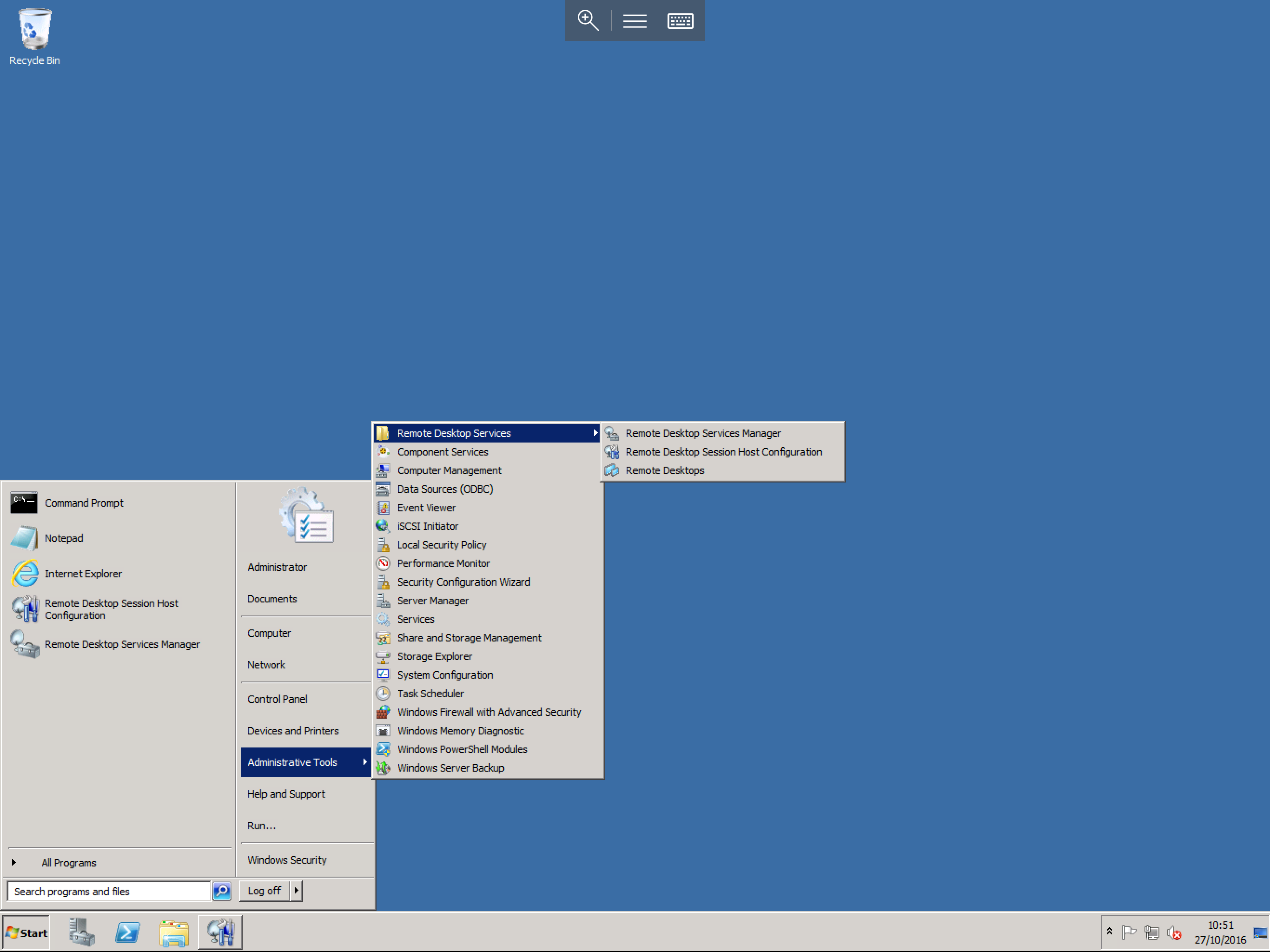
Select Start, then select Administrative Tools from the right side of the Start Menu. Now select Remote Desktop Services. From the 3 available options, please select Remote Desktop Session Host Configuration, as below:
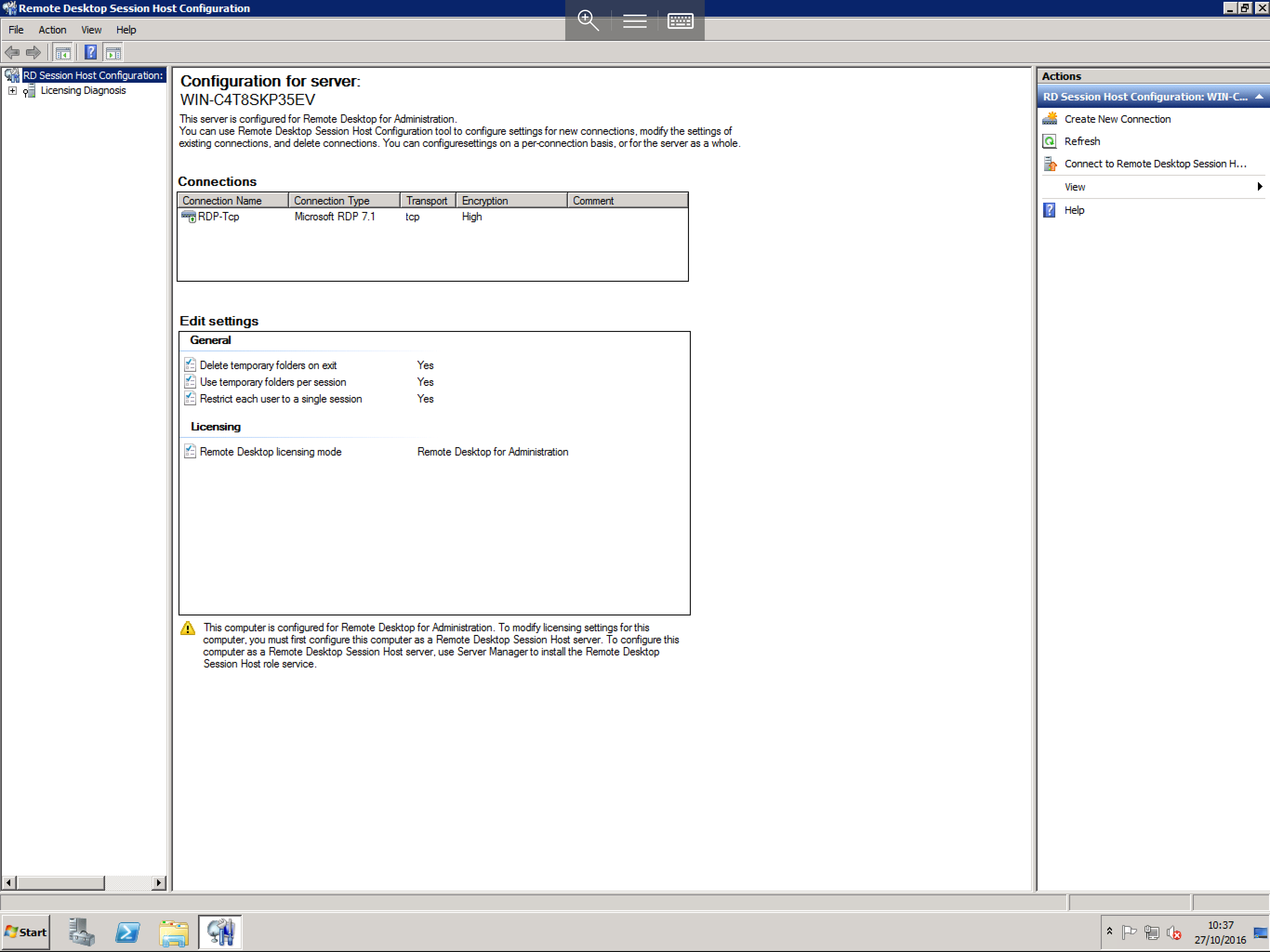
You will now be presented with the Session Host Configuration window, as below:
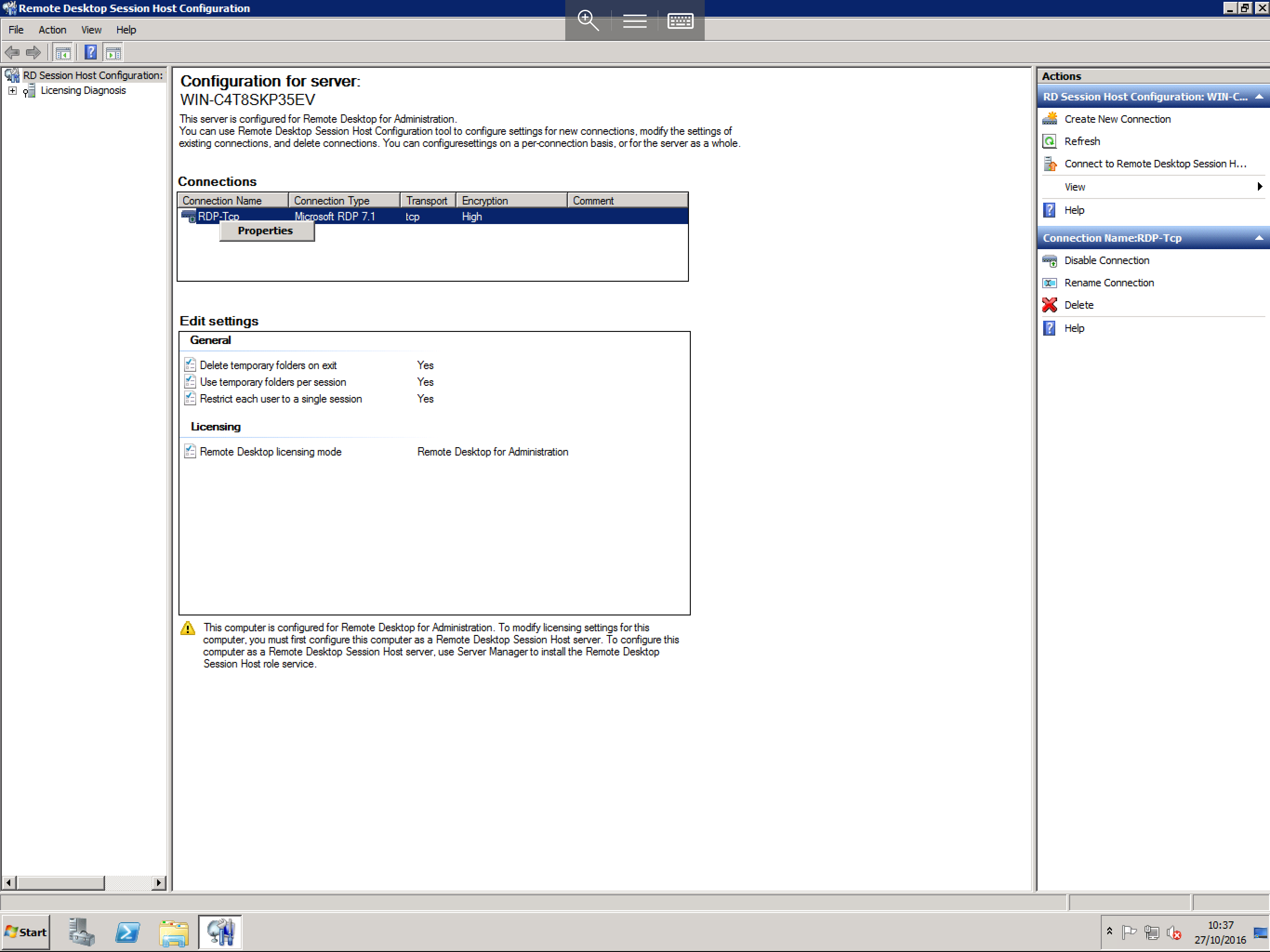
Within the central field you will see the Connections section. Within this section, you should have an entry named RDP-Tcp. Right click on this and select Properties, as below:
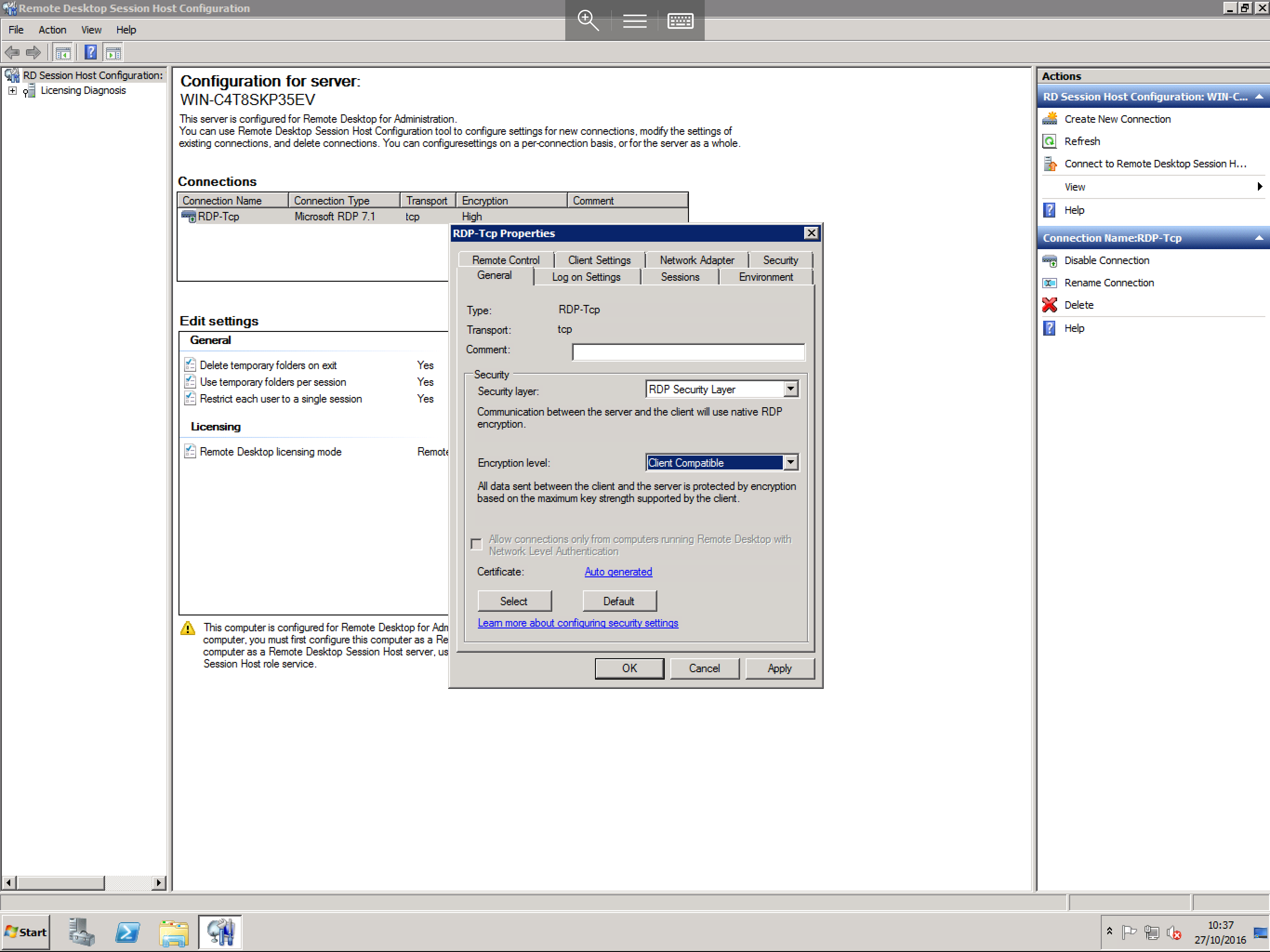
You will now be presented with the Properties for the connection. Within the General tab, you will see a number of options in their default state, as below:
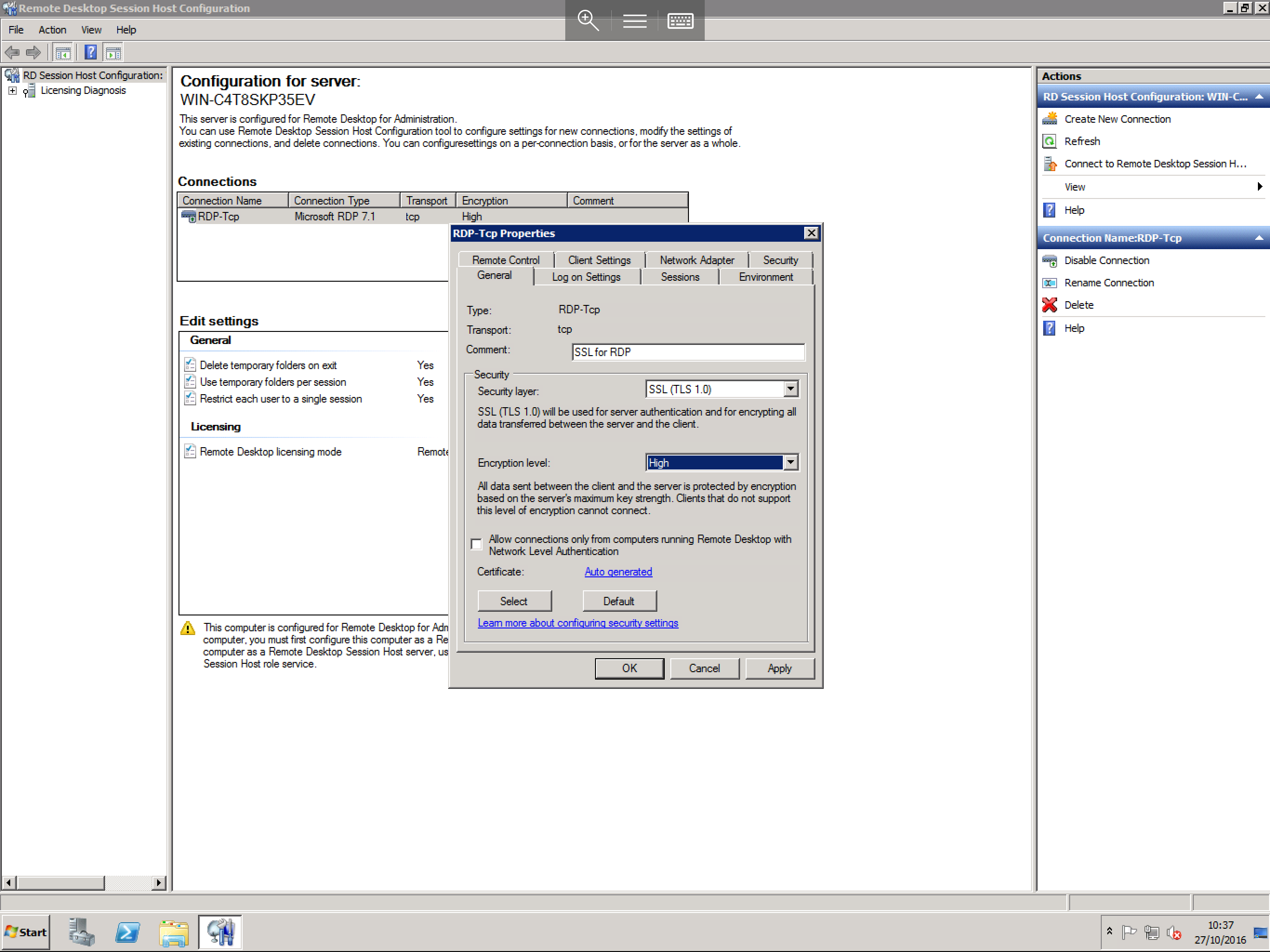
Select the drop down box next to Security Layer and select SSL (TLS 1.0). Select the drop down box next to Encryption Level and select High, as below:
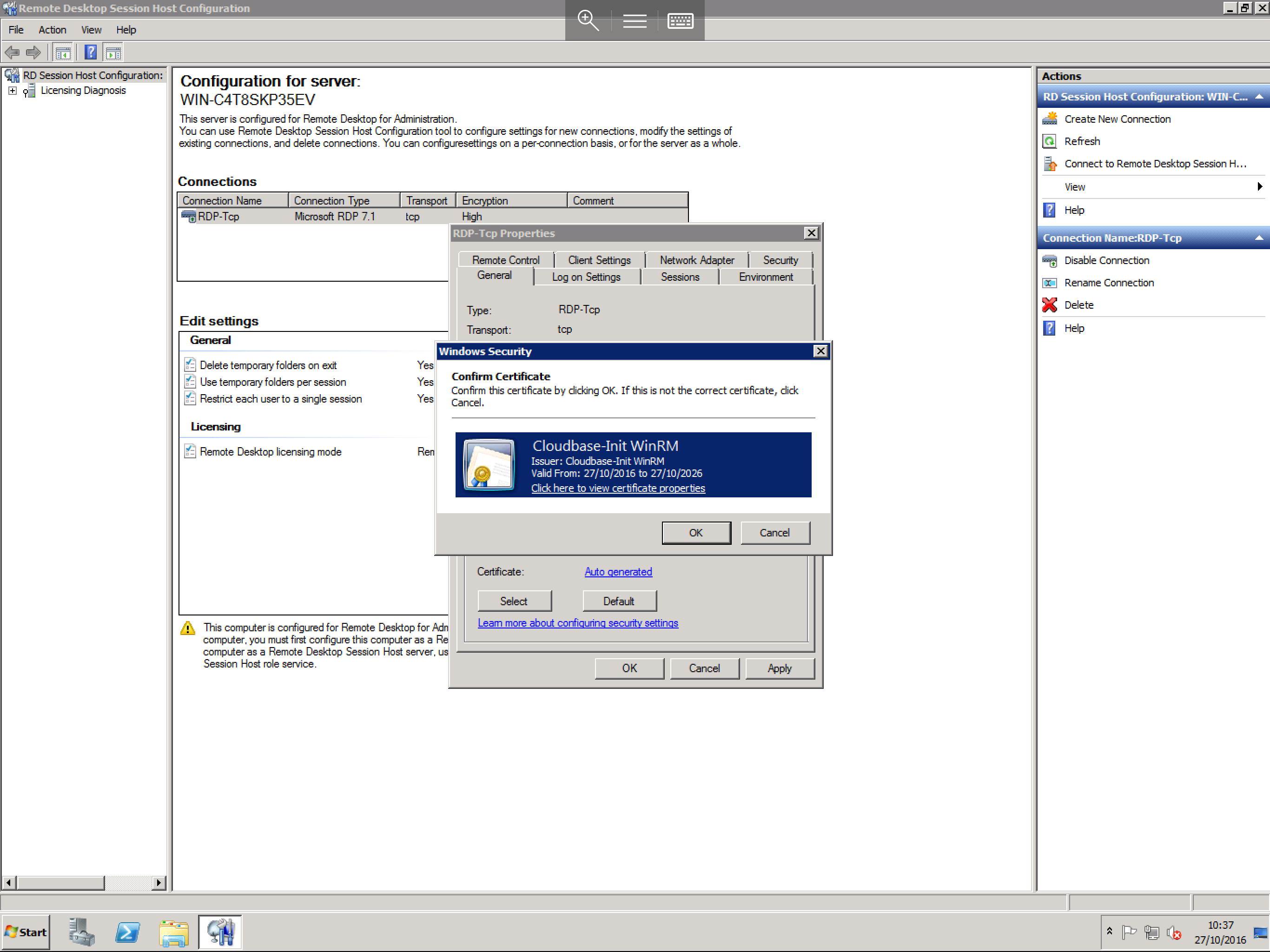
Near the bottom of the pane, you will see a small section named Certificate and it will display Auto Generated next to it. Click on the Select box underneath. You will now be asked to select the SSL certificate which you wish to use, as below:
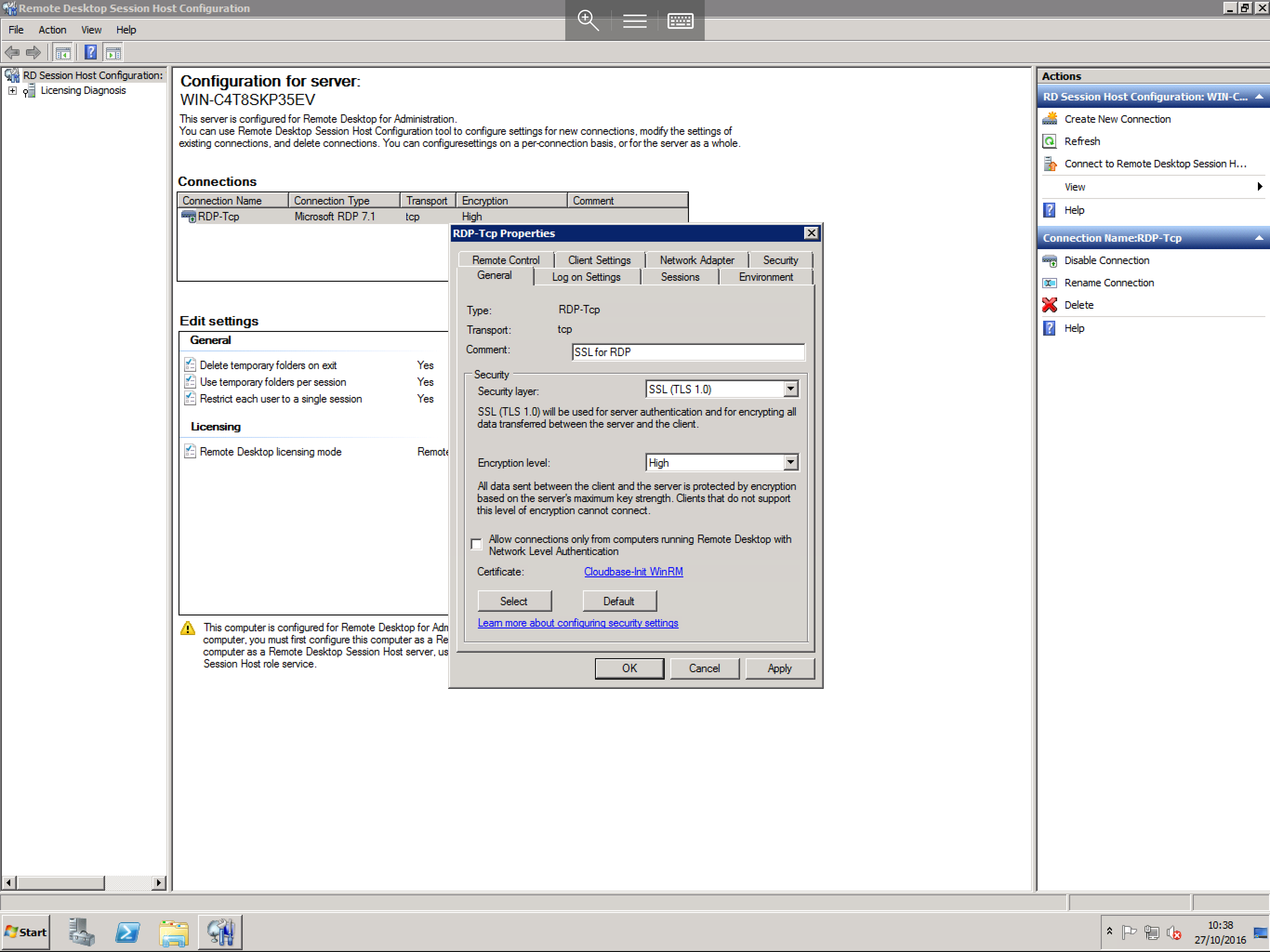
Select the SSL certificate that you wish to use and select OK. You will now be returned to the RDP-Tcp properties window as below. You will see that Auto generated has now been replaced with your certificate name.
Select OK and you will now be presented with a confirmation message as below. This message is a notice that the changes have been made, but they will not apply to any currently logged in sessions.
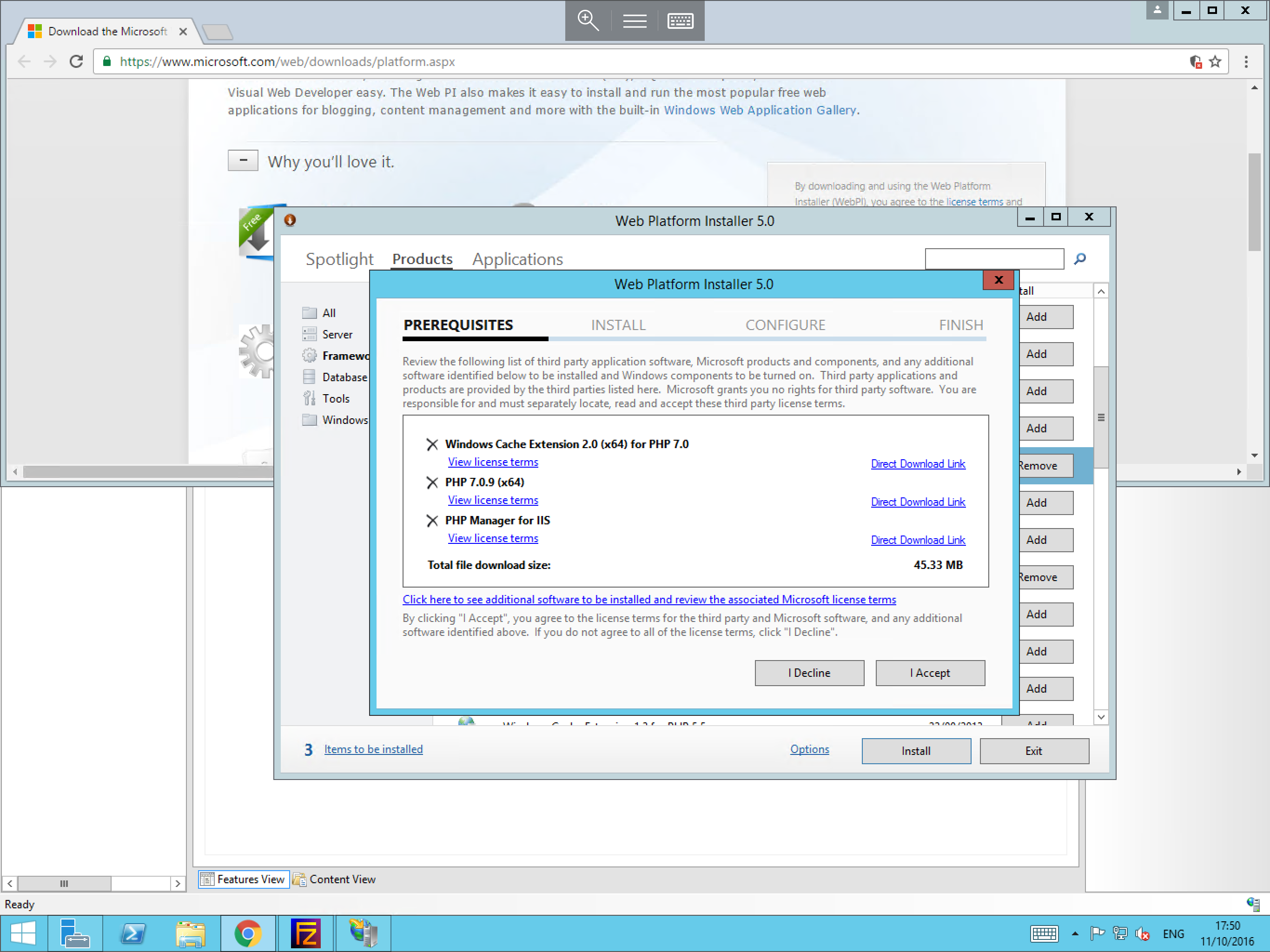
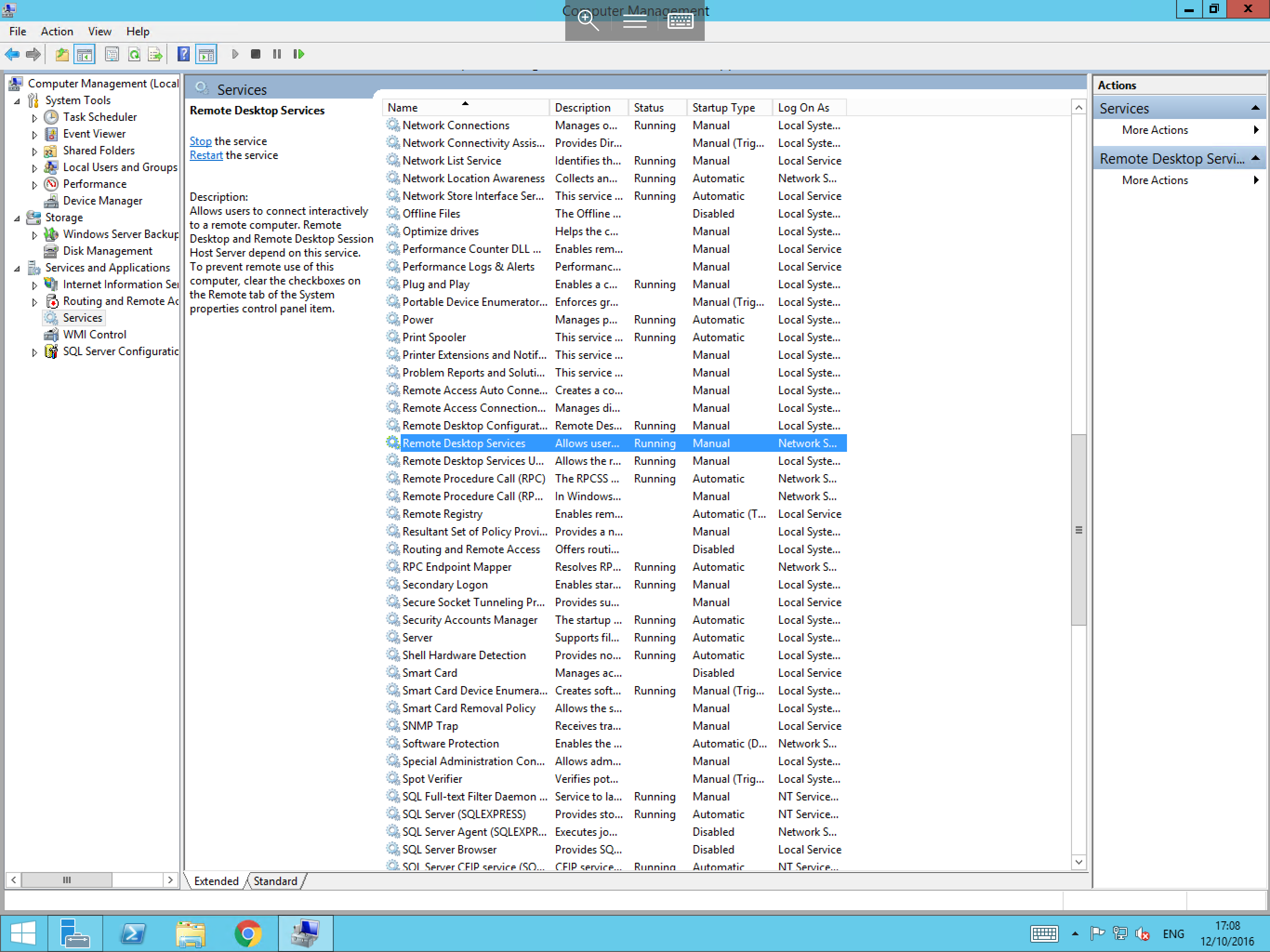
To force any active connections to disconnect, you can ask the current users to log off and back on again, or you can simply restart the Remote Desktop Services service. Any new connections will then be formed using the new security settings which you have just set.
Windows Server 2012 / 2012 R2
The process for Windows Server 2012 / 2012 R2 is somewhat different. It is a pre-requisite of this section that you have installed the Remote Desktop Services role. If you are unsure how to do this, please see our guide on installing roles in the Windows Administration section.
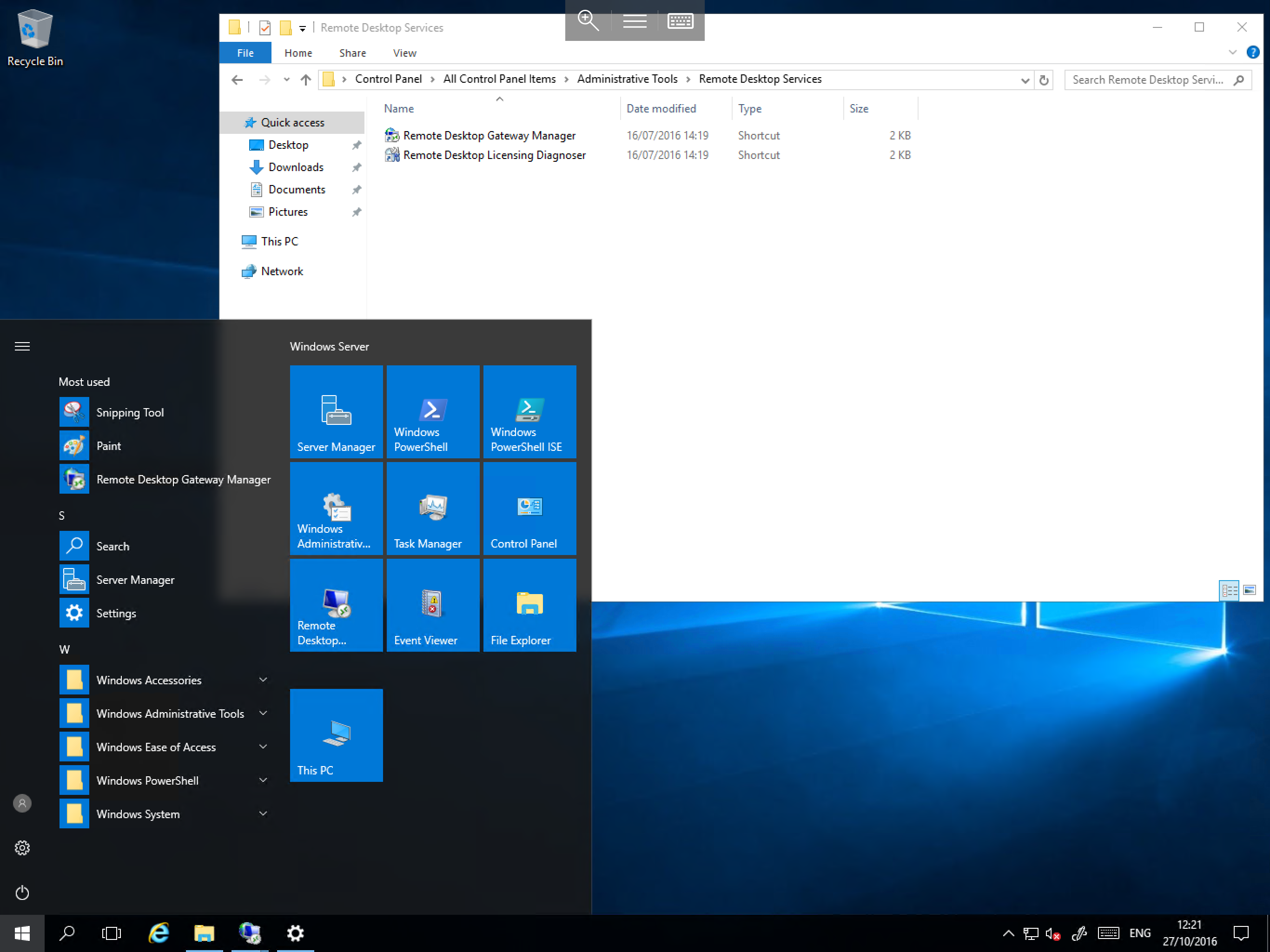
Select Start, then select Administrative Tools from the list of available applications, as below:
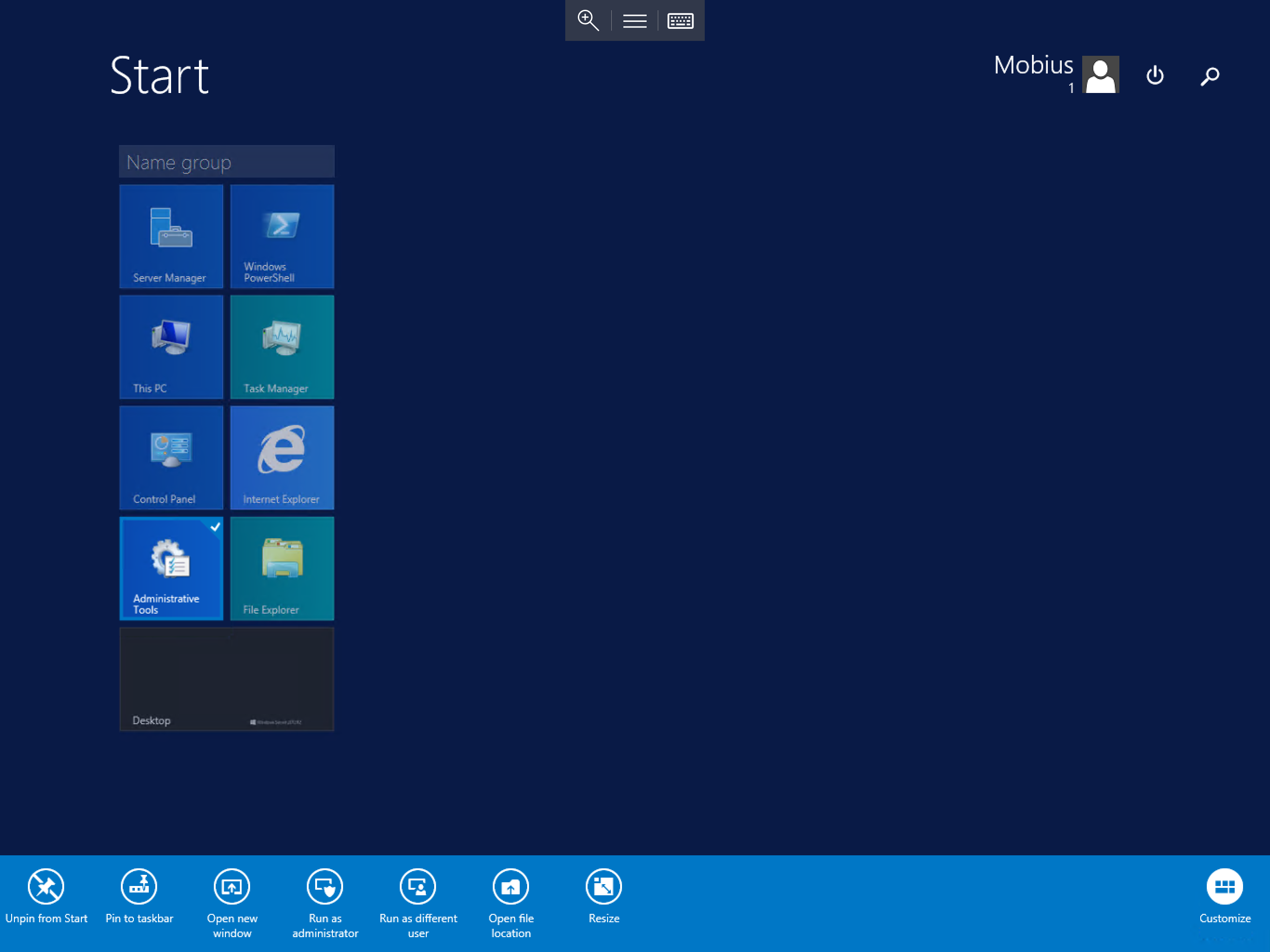
From the list of Administrative Tools, please select the Remote Desktop Services icon, as below:
In the following window, select the Remote Desktop Gateway Manager icon from the list, as below:
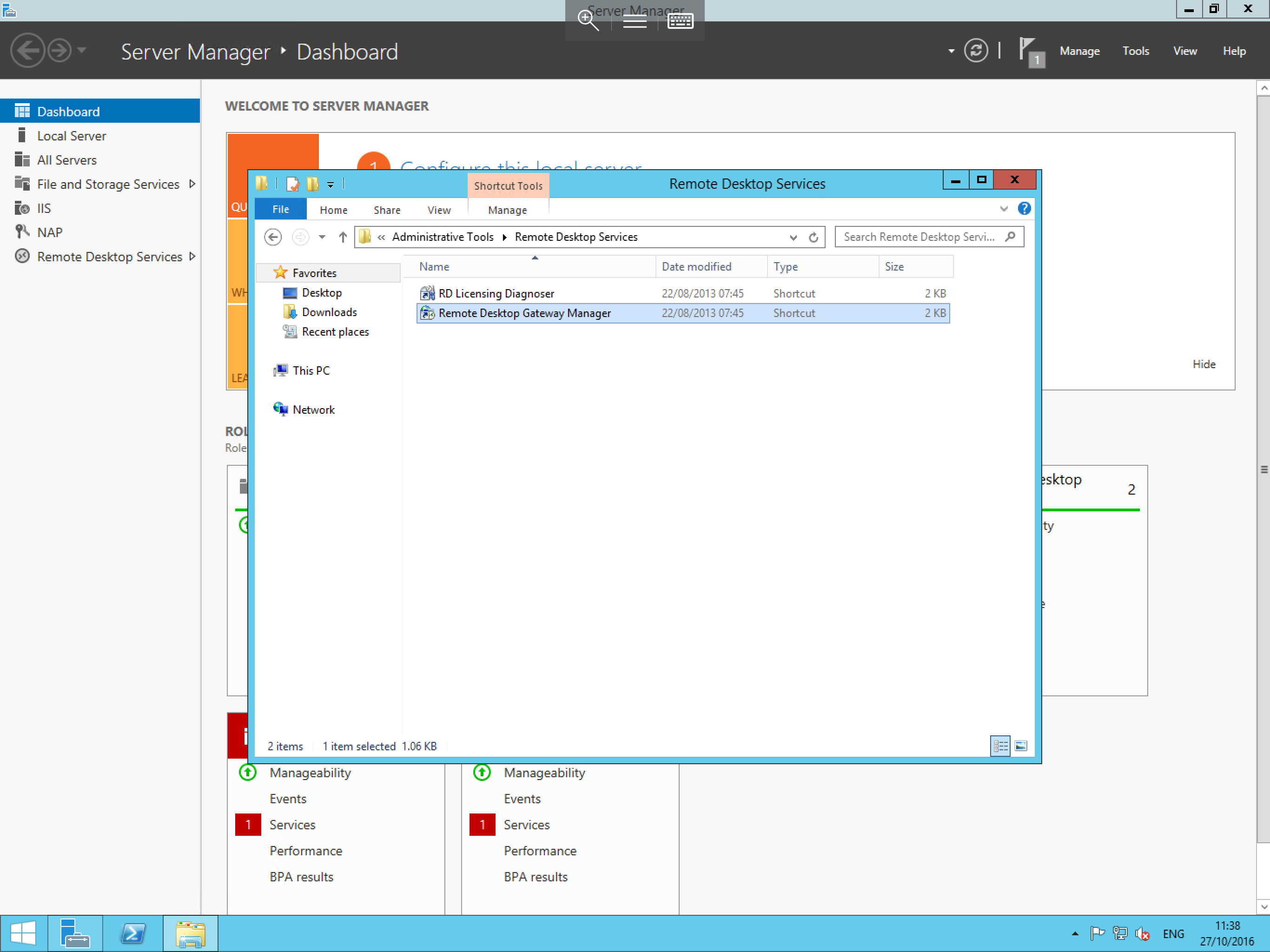
If this is not present then the Remote Desktop Gateway role is missing and you will need to install it.
You will now be presented with the Gateway Manager window, as below:
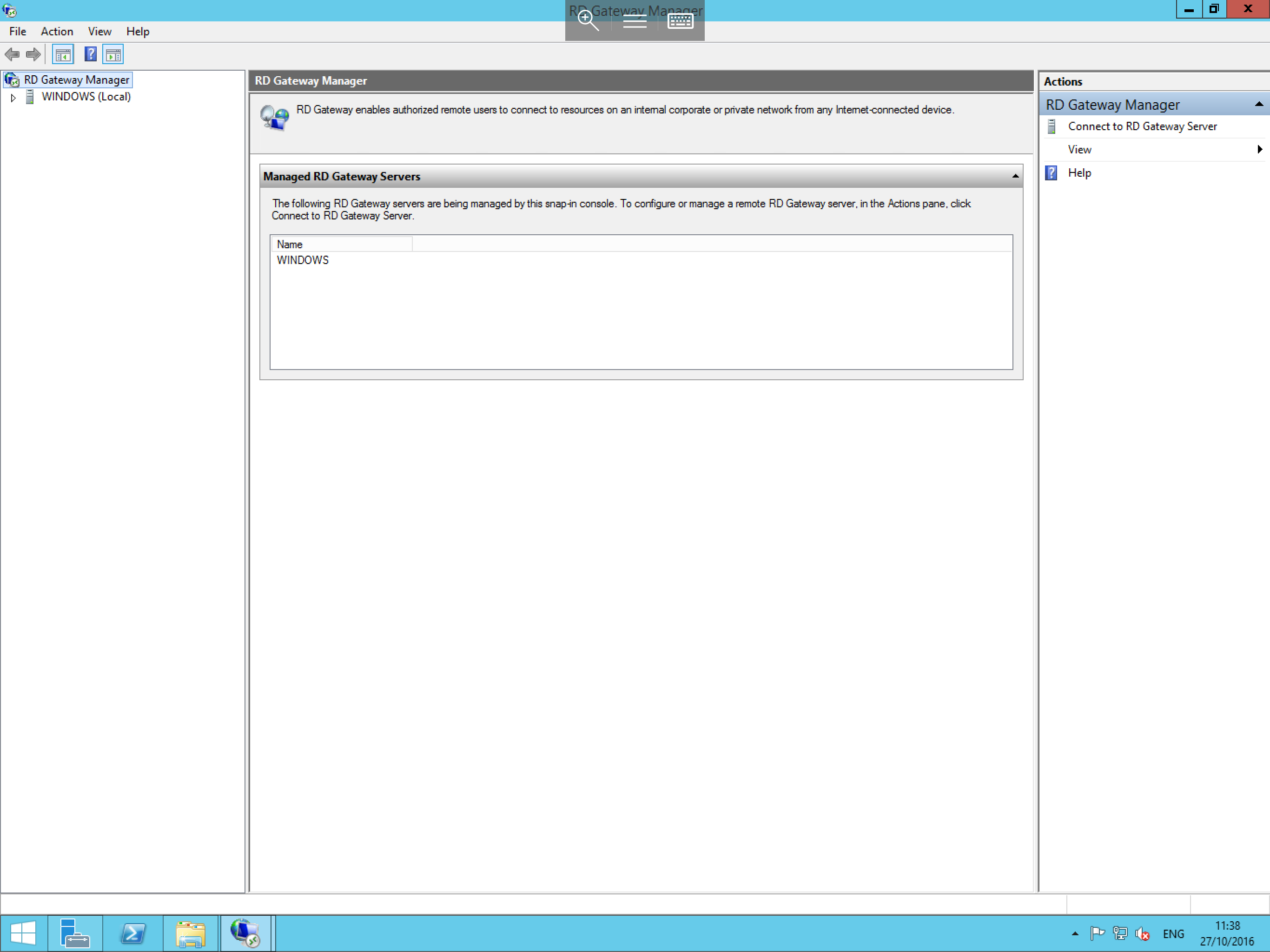
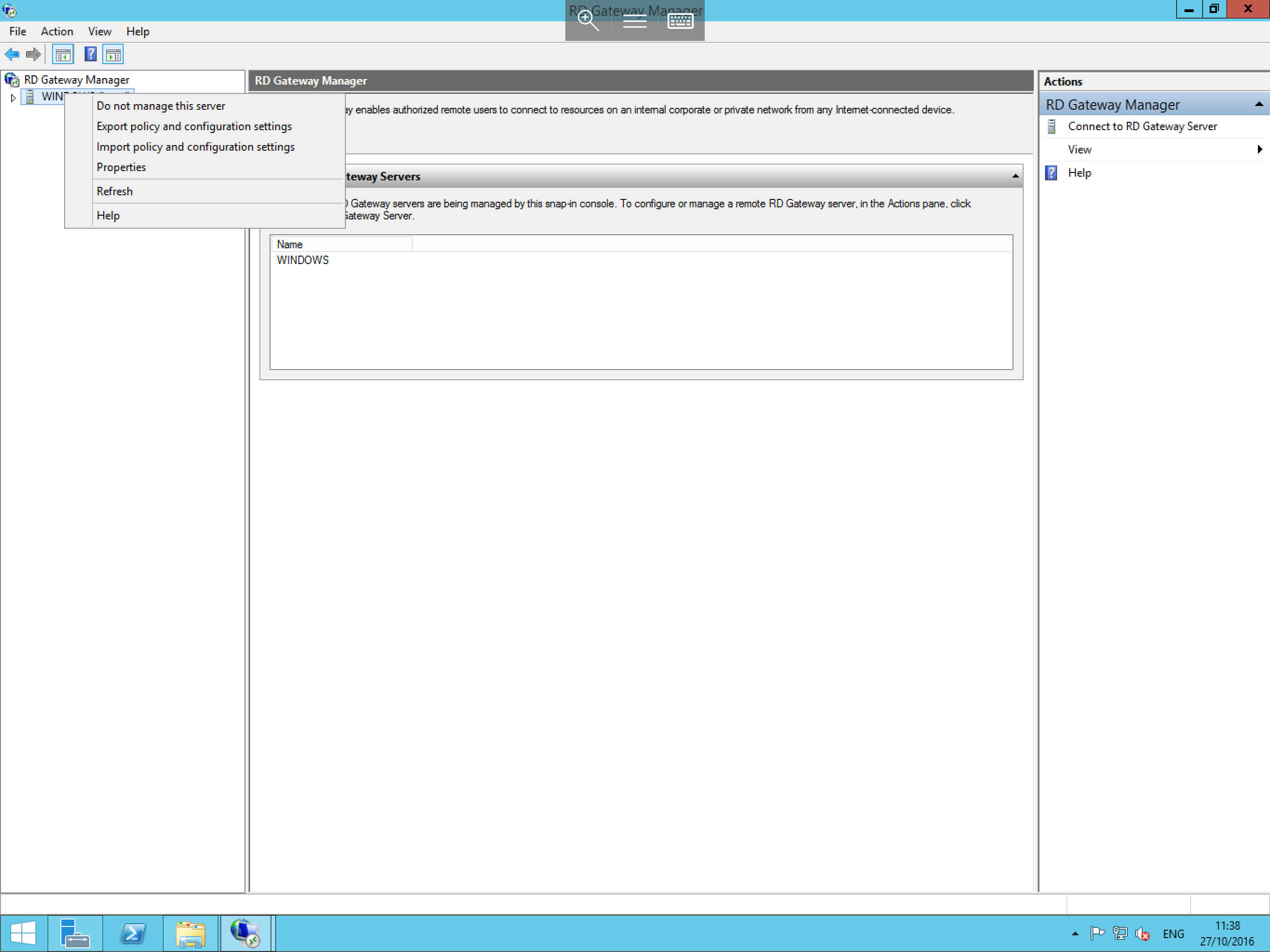
From this window, right click on the server name from the left-hand menu and select Properties.
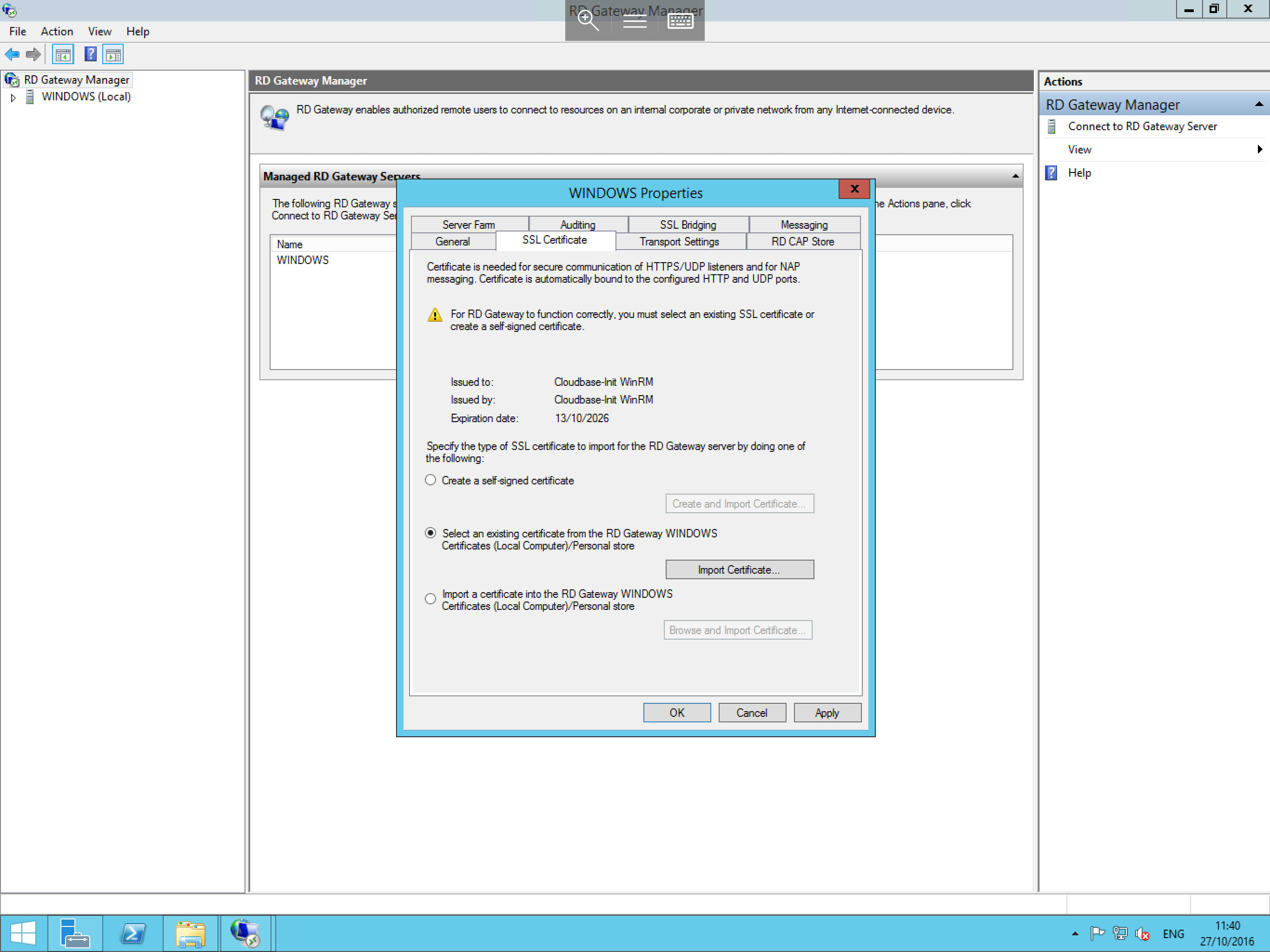
The Server Name properties (in this case WINDOWS) will now be displayed. Select the SSL Certificates tab, as below:
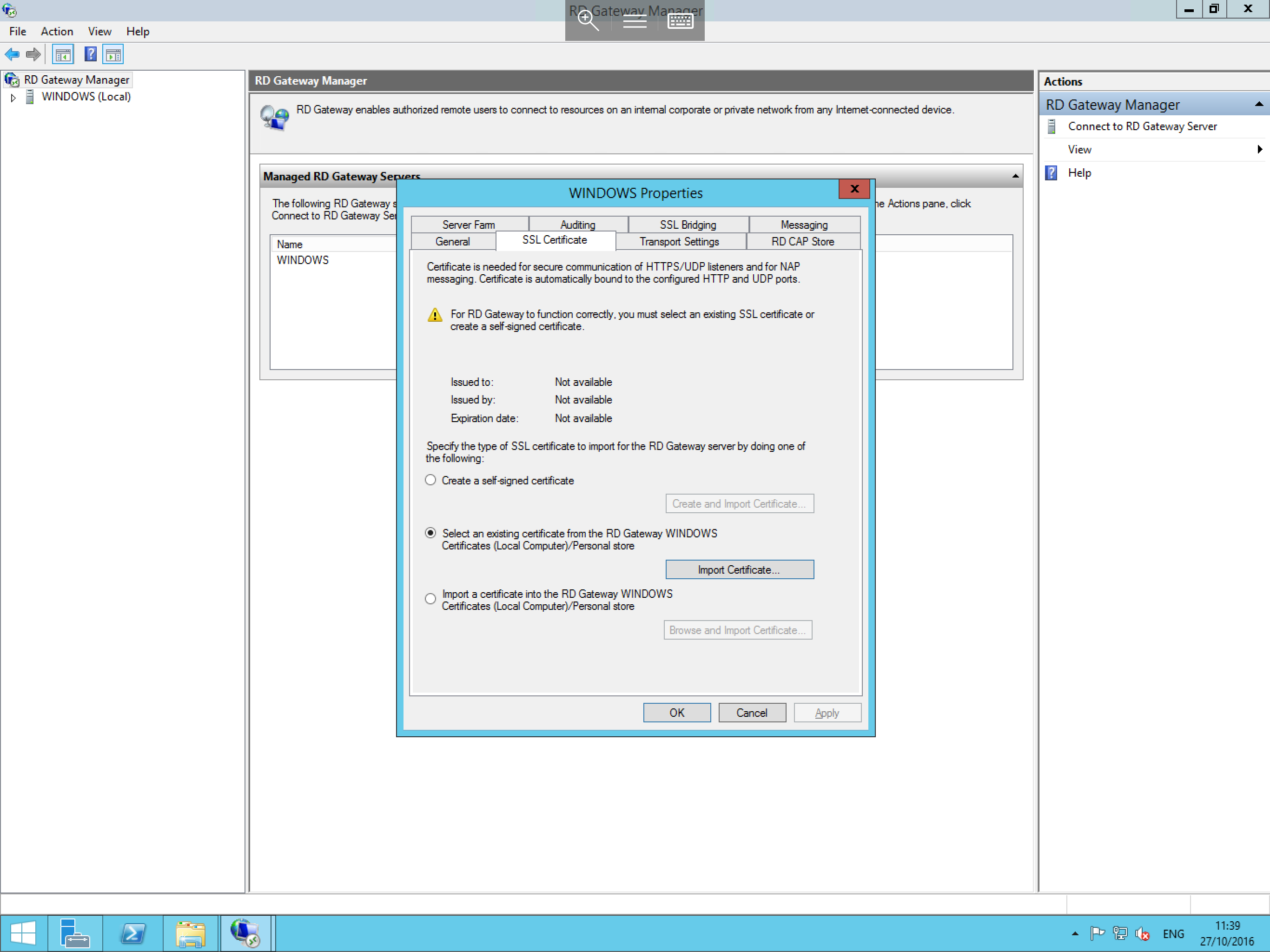
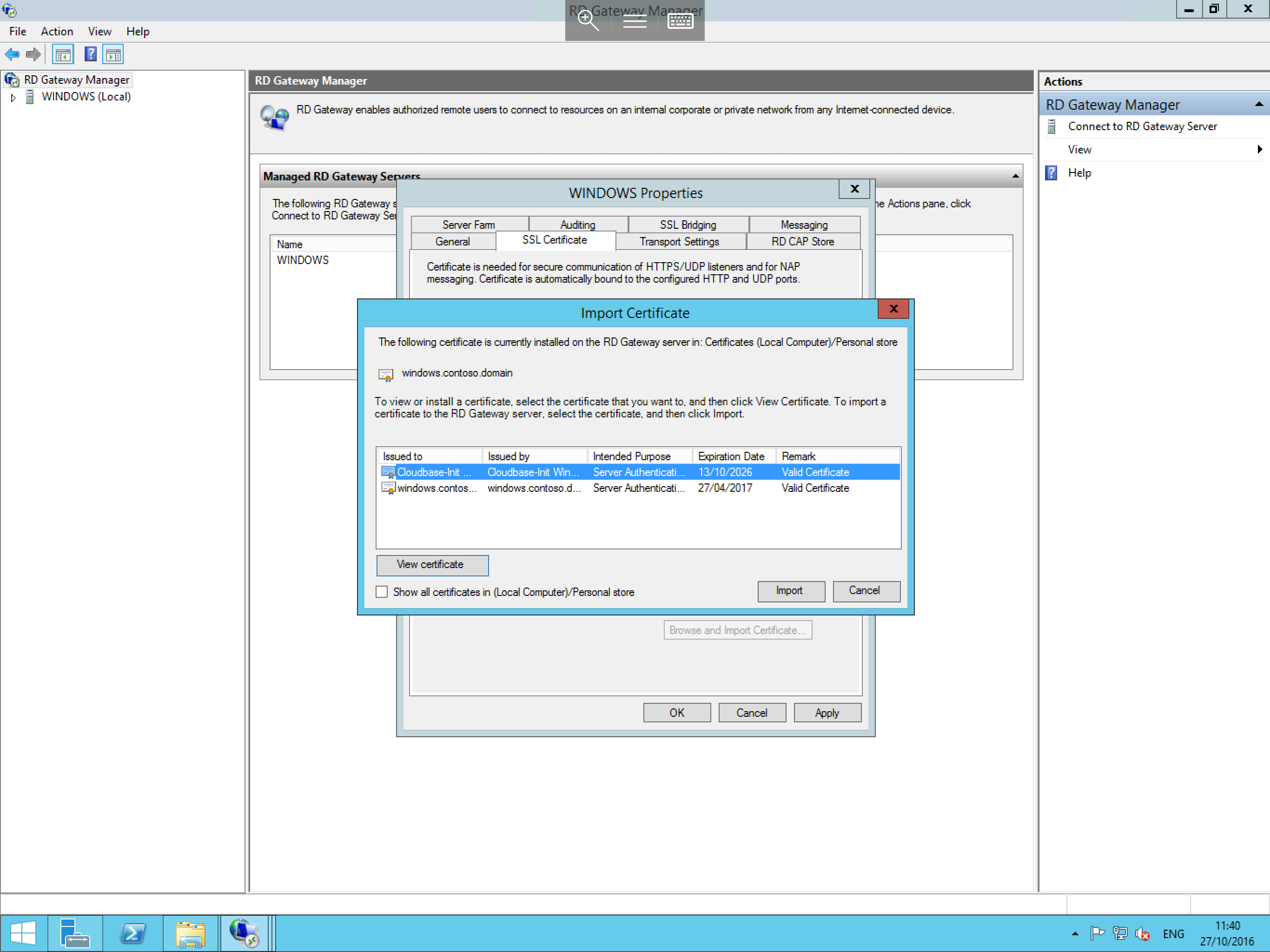
You will see that the Select an existing certificate from the RD Gateway option is selected. Select the Import Certificate button. In the new window that appears, select the required certificate from the list, then click Import.
The Properties window will now be displayed once more and you will be able to see your certificate selected in the top portion of the pane, as below. Select OK to complete the process.
As with the previous guide, only new sessions will use the new configuration. To ensure users are using the correct connection parameters, please ask them to log off and back on again. Alternatively, restart the Remote Desktop Services service.
Window Server 2016
The process for Windows Server 2016 is identical to that of Windows Server 2012 & 2012 R2 and, as such, the above guide can be followed.
The Start Menu has been re-designed in Windows Server 2016. Please view the below screenshot which shows where you will be able to locate the Windows Administrative Tools