Setting up backups
Choosing which files and folders to back up
From the home screen of the FASTcloudbackup webconsole click on My Data, find the computer or server you wish to work on and then click Settings.

The default setting is that everything in your C:\Documents folder will be backed up when you run a backup. If you wish to change which files and folders are backed up, go to the Content area on the right hand side and click Edit.

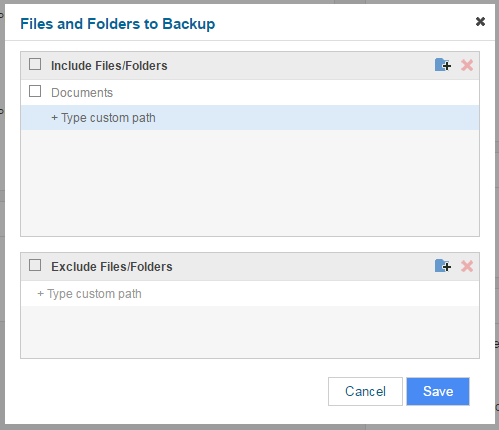
You can choose which files and folders to include in your backup process, or alternatively which ones you wish to exclude. Click on the + symbol to specify which files and folders to include or exclude.
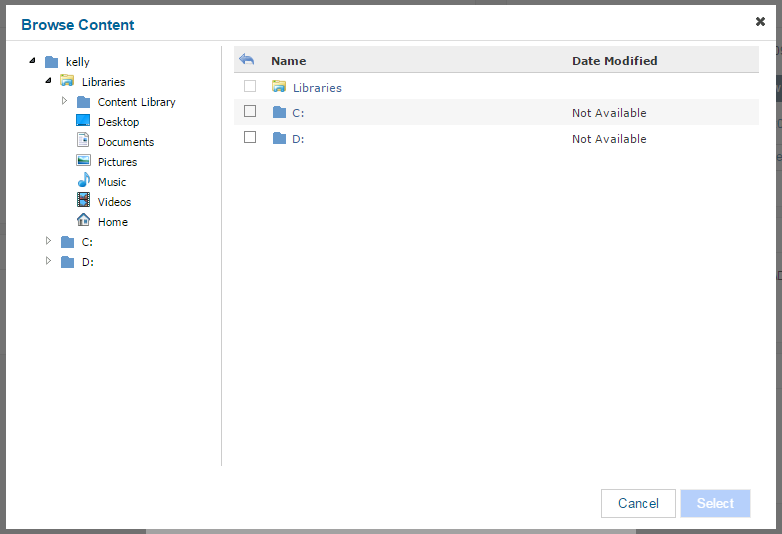
Then navigate through your file structure to choose files and folders.
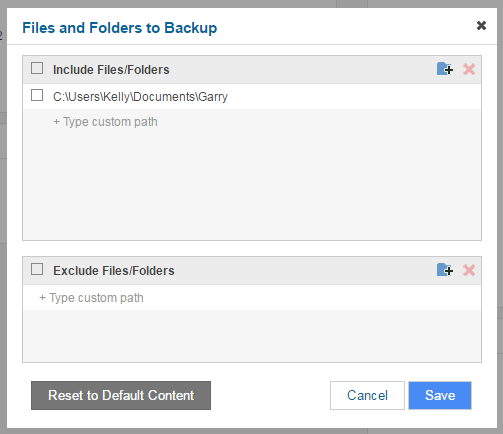
To remove files and folders previously selected, click the checkbox and then X. You can return to the default setting (backing up everything in C:\Documents) by clicking Reset to Default Content.
Running a manual backup
You can run a manual backup at any time, simply click Backup Now in the Schedules area. The backup will run immediately. Note that if this is the first backup then it may take some time, depending on the size of the files and folders being backed up. Subsequent backups are incremental, only backing up changes and/or new files created, and hence will generally be quicker to run.

Creating a backup schedule
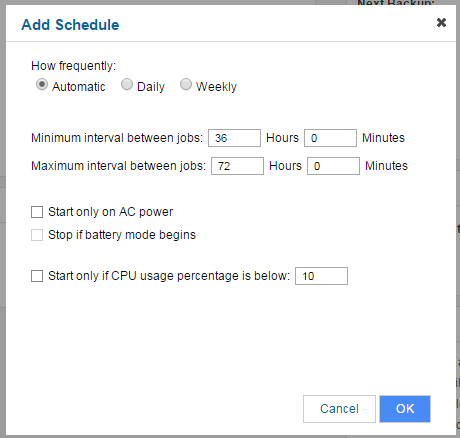
You can create a backup schedule, so that your backups run automatically. To do this click the + Schedule button.

You can create schedules on a daily or weekly basis, where backups run at a set time of day/day of week. Alternatively you can set a minimum and maximum time period between each backup job - backups will then run automatically during the specified time window.
Amending your backup schedule
You can amend your backup schedule as necessary, deleting or changing existing scheduled backups. To do this click on the scheduled backup, make the changes required and click OK, or else click Delete to remove the scheduled backup.

If you stop backing up a particular computer or server, you may want to cancel any alerts you previously had set up otherwise you will continue to receive notifications that backups have not been run.