Configuring user permissions
From the Users list within the Computer Management console, right click on the user you wish to configure permissions for and select Properties.
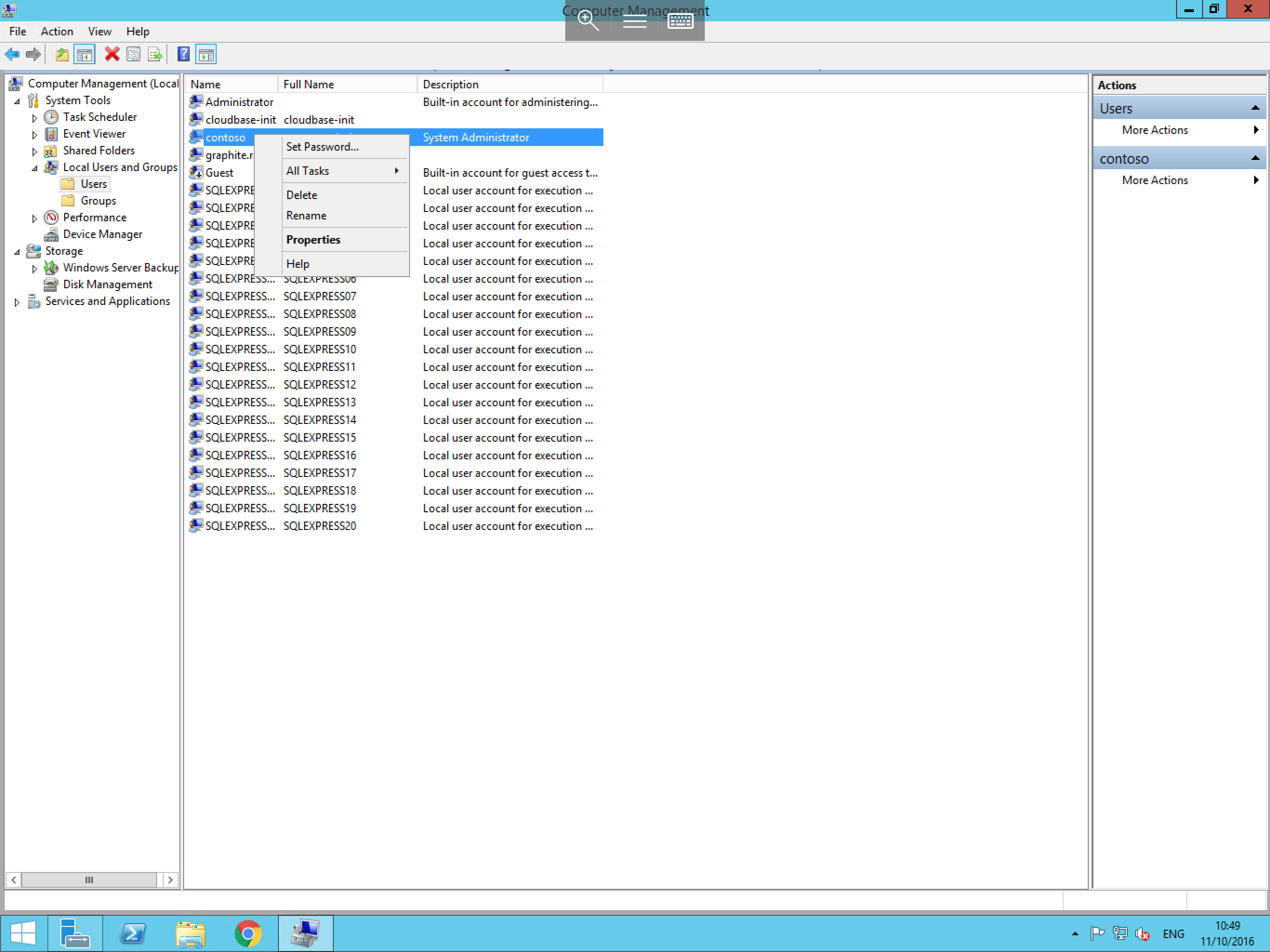
You will now be presented with the user properties, select the Member Of tab.
This panel will list all of the groups your user is a member of, by default this will only contain the Users group. In this panel, select the Add button. This will load the Select Groups windows. In the blank field at the bottom of this window, enter the name of the group which you wish to add your user to as below:
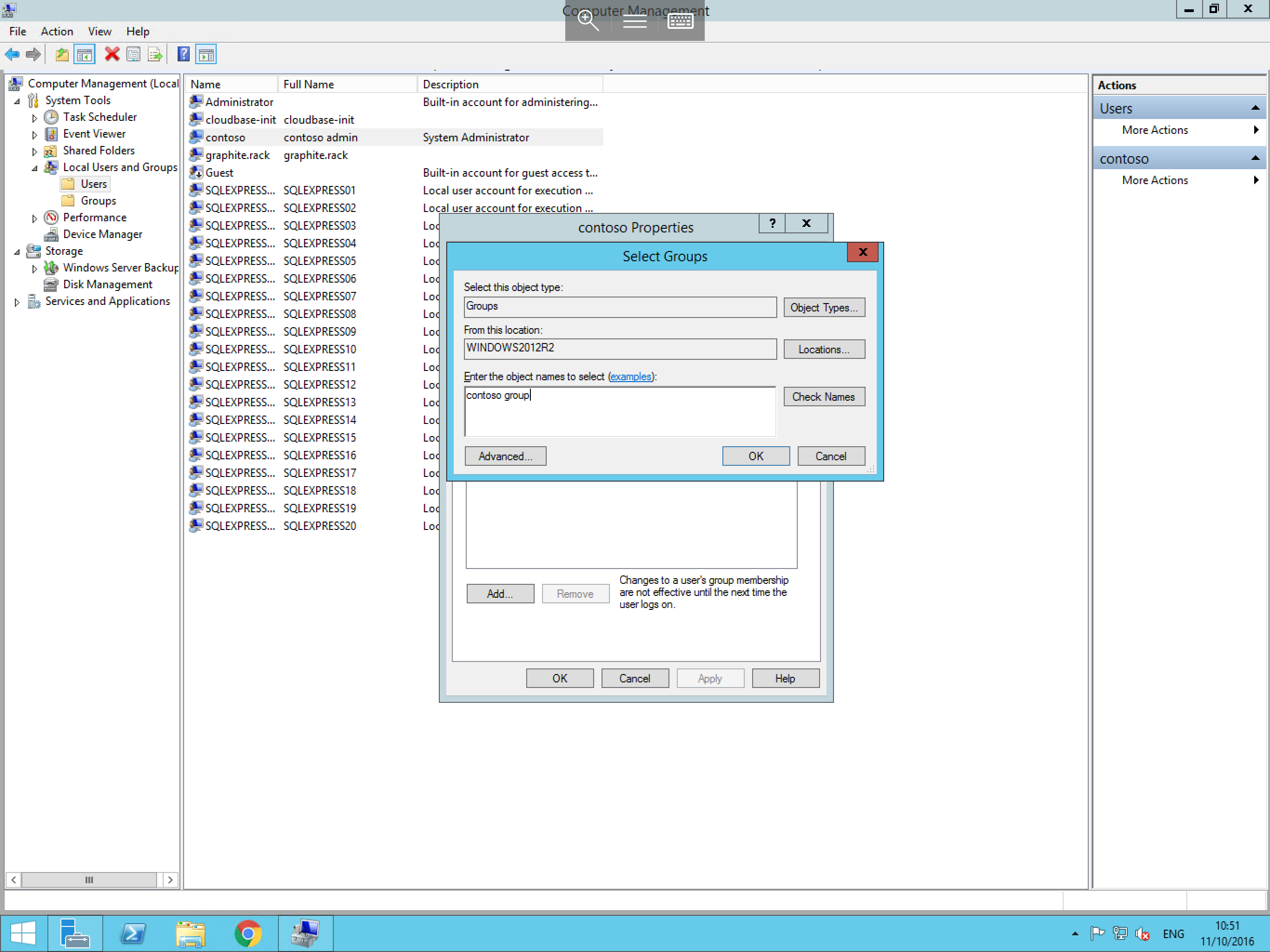
Alternatively, if you are unsure of the available groups, from the Select Groups window, select Advanced, and select Find now. From the list that loads on this screen, select the group you wish to assign this user to and click OK to assign these permissions.
You should now be taken back to the user properties Member Of window, which will contain all of the new groups which you have added your user to as below:
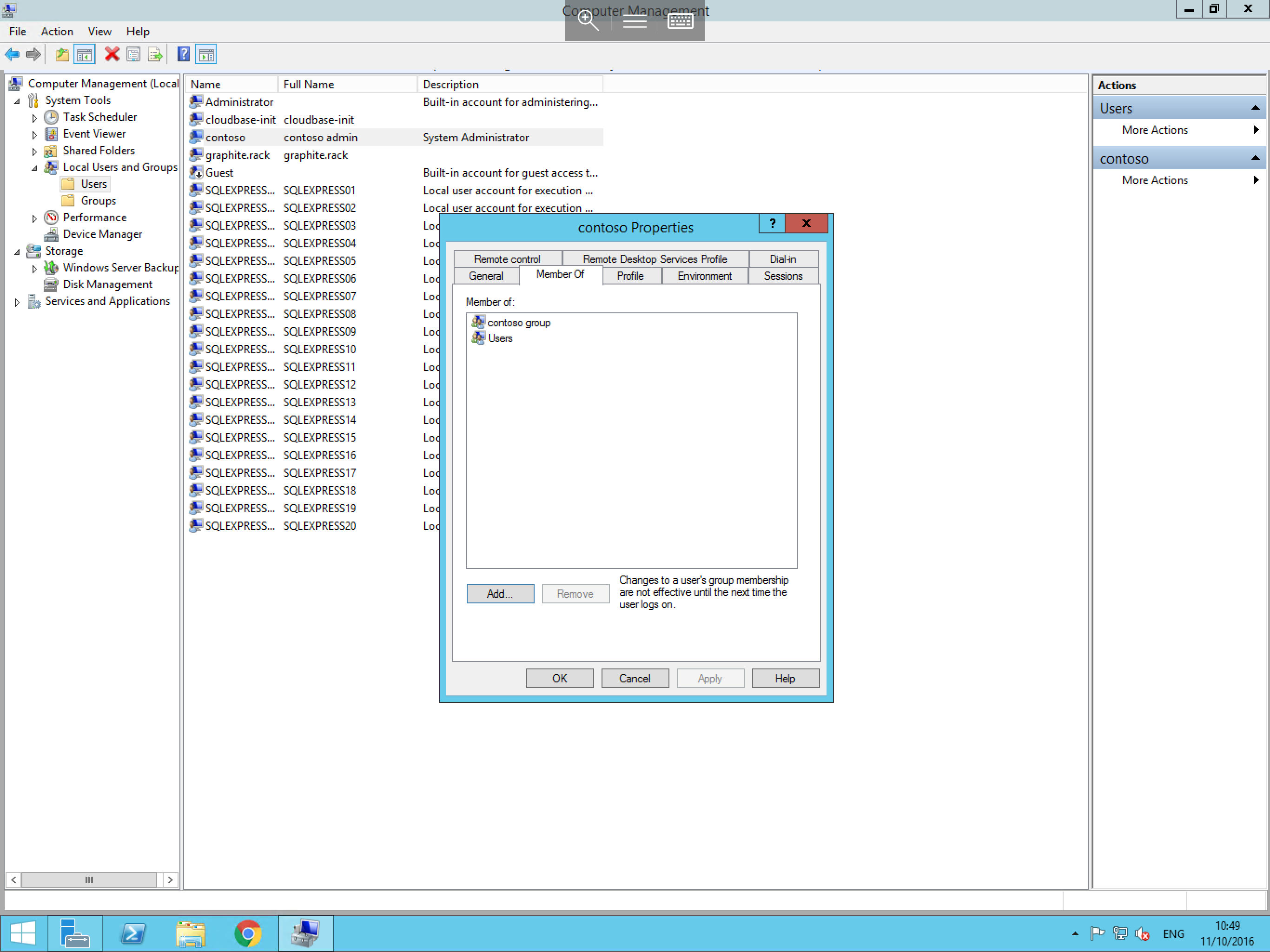
Check that all of the required groups are present, and select Apply to complete the process.