KB2379016 - Windows Server 2008 stuck at “Applying user settings…”
This is a known issue in Windows Server 2008 that has subsequently been fixed in Windows Server 2008R2.
The issue occurs because of a deadlock in the Service Control Manager database.
The Service Control Manager tries to start the HTTP.sys service and then puts a lock in place in the Service Control Manager database.
HTTP.sys then makes a call that requires Cryptographic Services during startup, this triggers a request to start Cryptographic Services.
However, a lock is already in place in the Service Control Manager database. Therefore, a deadlock occurs and neither service can start correctly.
A Hotfix is available to resolve this issue, which can be downloading by visiting the following link:
This patch is a preventative measure, however, and if the issue has already occurred and you are unable to log in to your server normally, please follow the below guide to rectify the issue.
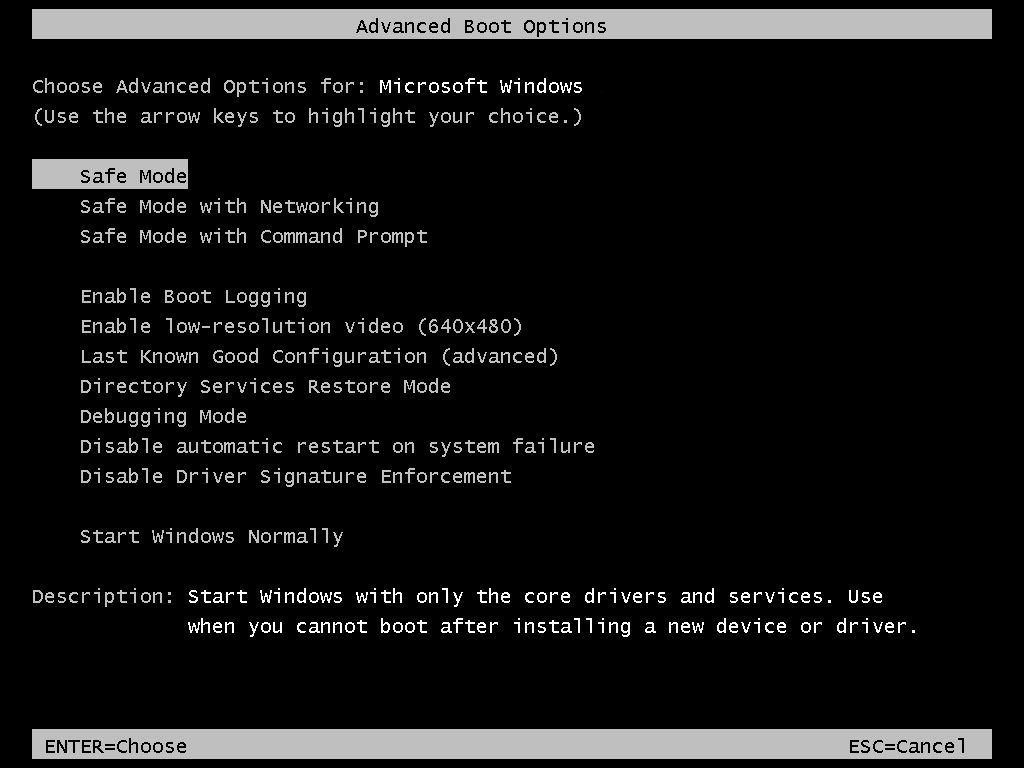
- To carry out this manual patch, you will need to boot the server in to safe mode. To do this, press F8 during the POST process at startup. Continue to press the key until you are presented with the
Advanced Boot Optionsas below and selectSafe Mode.
Once the server has booted in to safe mode, select the Start menu, type regedit, and then press ENTER as below.

You should now be presented with the Registry Editor. Navigate through the hive to reach the HTTP key. The full path to this key is HKEY_LOCAL_MACHINE\SYSTEM\CurrentControlSet\Services\HTTP. Once you have reached the HTTP key, you should now be presented with the required location as demonstrated below.

Right click on the HTTP folder and select New, then select Multi-String value as below.

A new key will now be created. Name the key DependOnService and click in a blank area to set the name. Now right click the DependOnService key and select Modify as below.

You will now be presented with the Edit Multi-String pane, in the Value Data field, please enter CRYPTSVC and select Enter as below.

Please close the Registry Editor, and reboot your server at the earliest opportunity to apply the new Registry Key. On this occasion, leave the server to boot normally and the issue should now be resolved, allowing you to log in as normal.