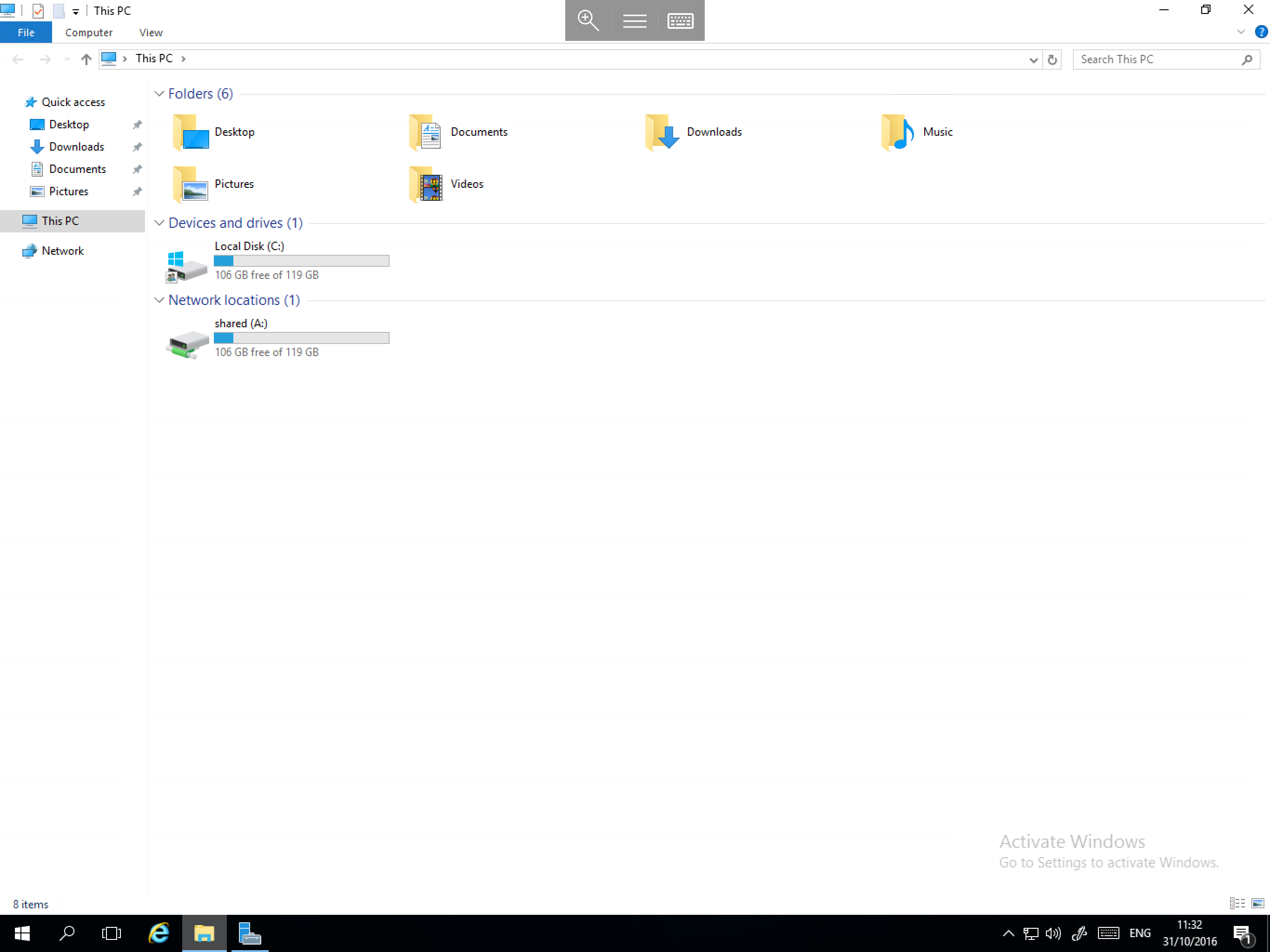
How to set 'This PC' as the default Explorer location
In Windows Server 2016, when opening the File Explorer, you will be taken by default to the Quick Access window.
If this is an inconvenience to you, it can be changed to open "This PC" instead. In order to configure the file explorer to open "This PC" by default, please follow the below guide.
Right click the Start button, and select Control Panel, now select File Explorer Options from the list of available modules. You will now be presented with the File Explorer Options menu as below:
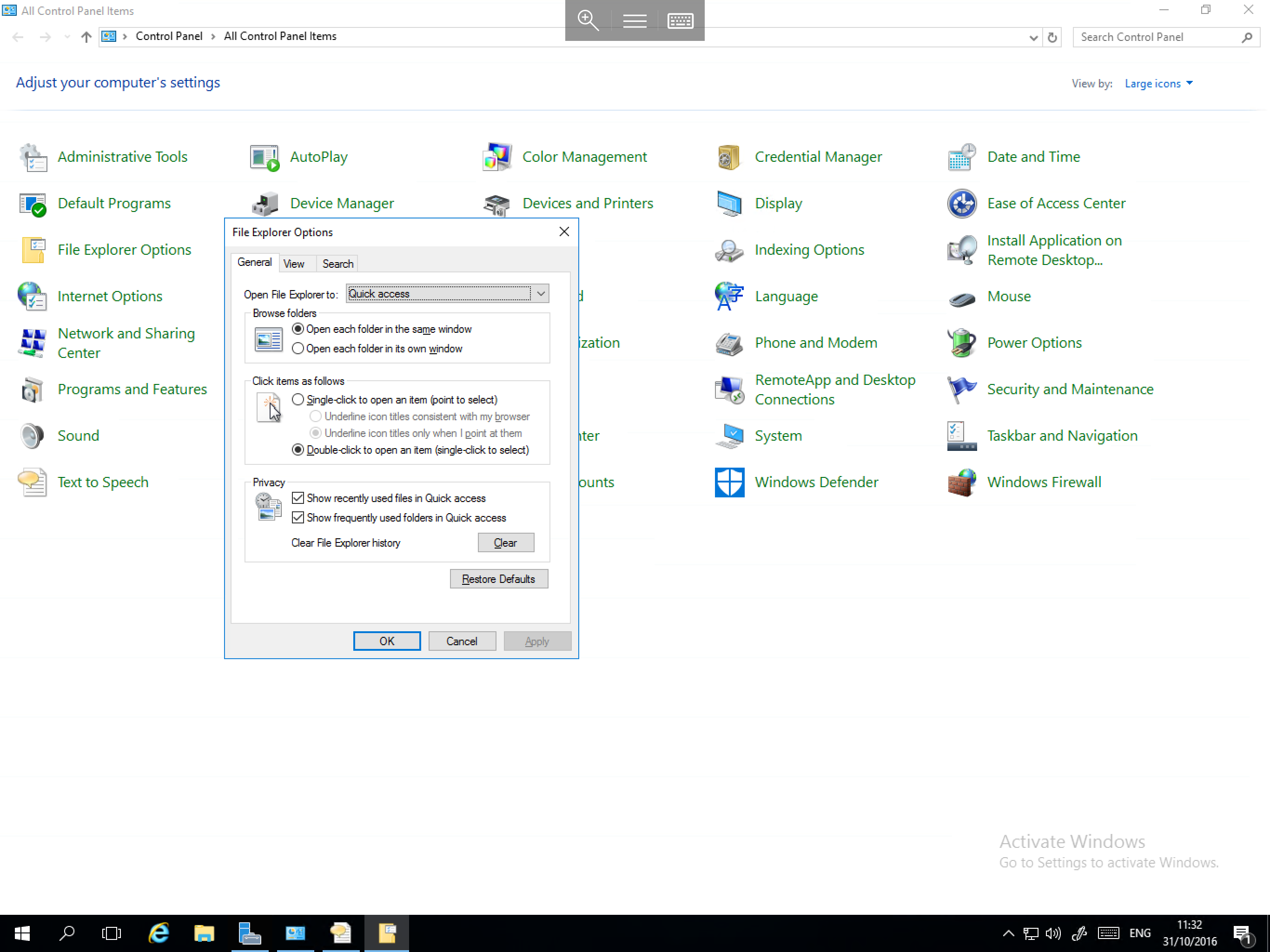
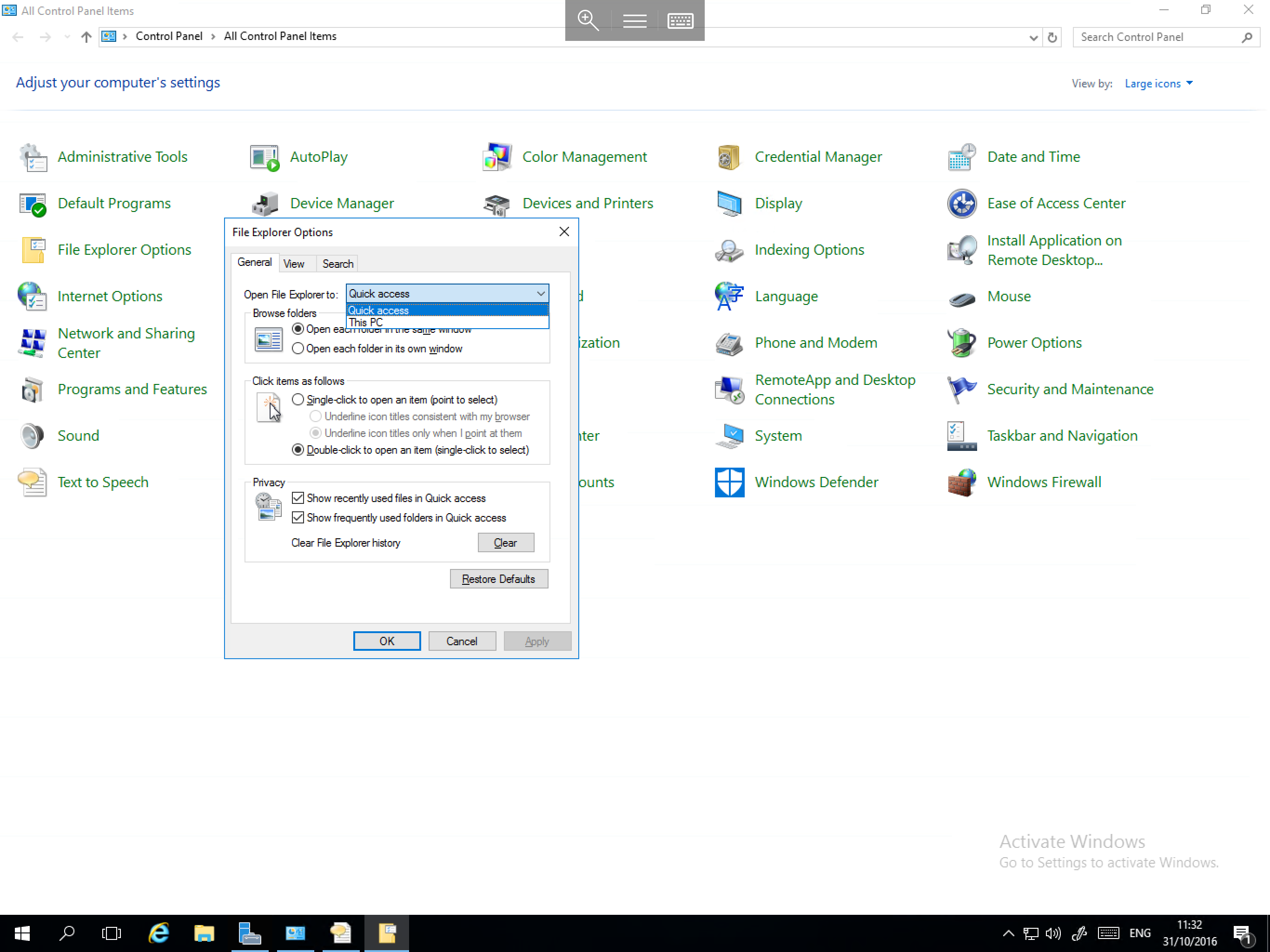
Within this pane, the first option Open File Explorer to: needs to be changed. Select the drop down box which contains quick access and select This PC from the list as below, and select OK.
Now launch a new instance of File Explorer by selecting the Explorer (Folder) icon from the taskbar and you will find that the familiar This PC window will now be launched as below: