Enabling disk performance counters
Disk performance counters allow you to see the current disk activity in Task Manager. This is useful if you would like to quickly see how much your disk is being utilised as you would for CPU, memory, and network.
Disk performance counters are enabled but not visible in Task Manager by default in Windows Server flavours of the OS:
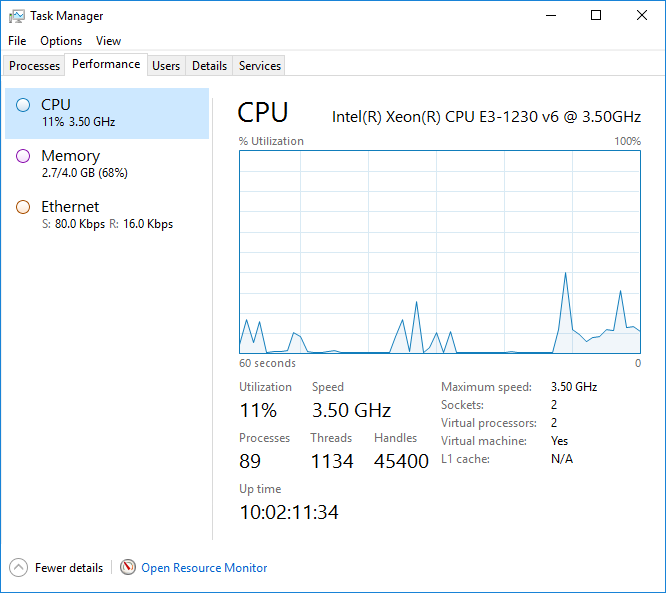
The steps below can be used to enable visibility in Task Manager:
- Launch a
Command PromptorPowerShellwindow using theRun as Administratoroption. - Enter the following line and press
Enter:
diskperf -Y

- Open
Task Managerand select thePerformancetab:
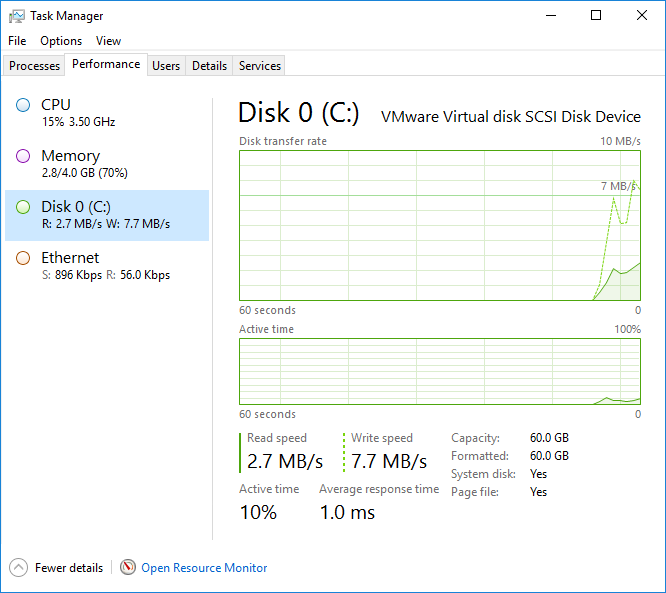
Disk performance counters can be hidden again if necessary using the -N switch:
diskperf -N