How to forcibly end a process in Windows
In some instances applications and processes can become unresponsive and require manual intervention to forcibly end the process.
In order to forcibly end a process, you have two methods available to you.
End a process using Task Manager
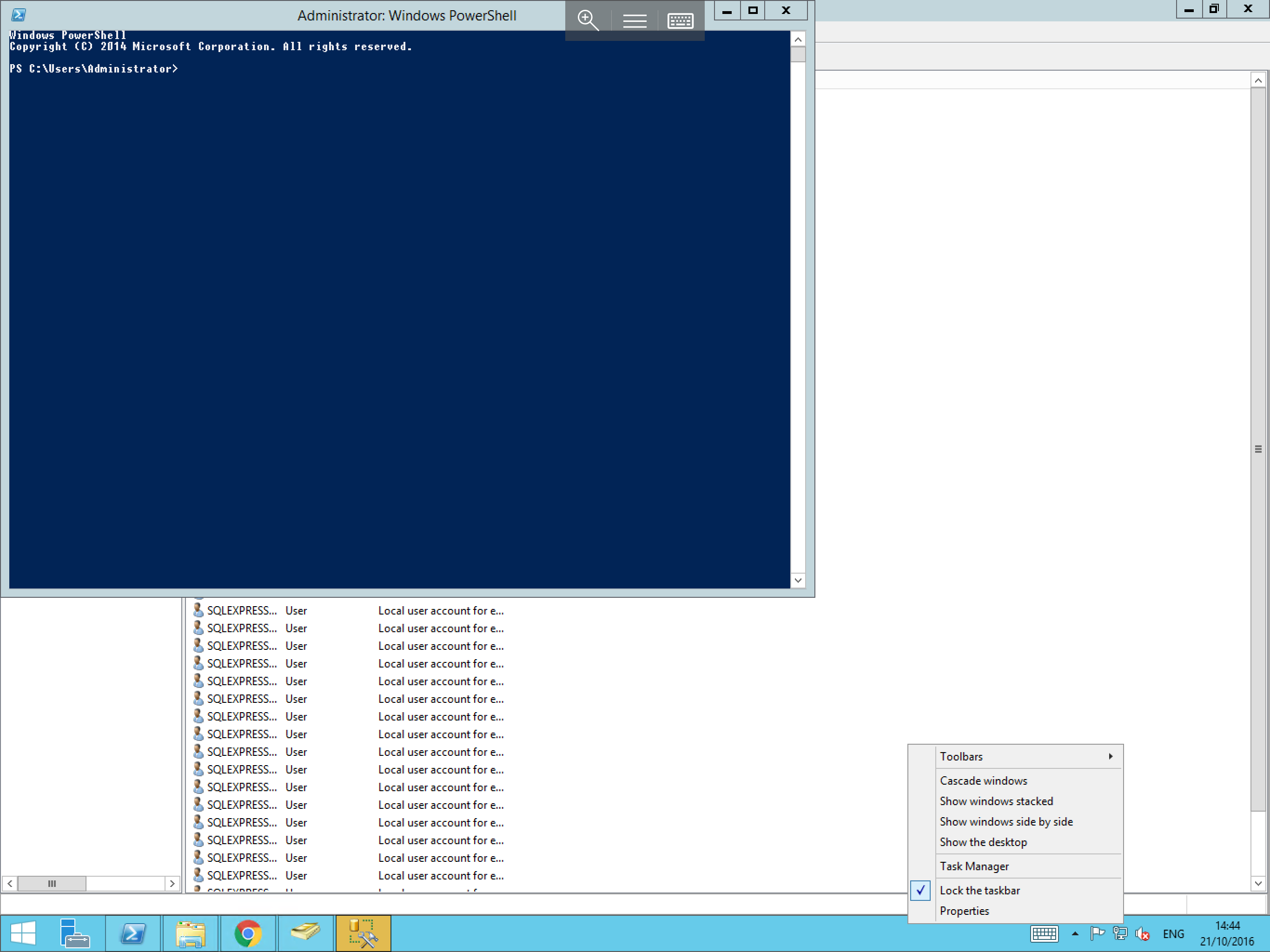
To forcibly end a process using Task Manager, right click on the Start menu, and select Task Manager as below:
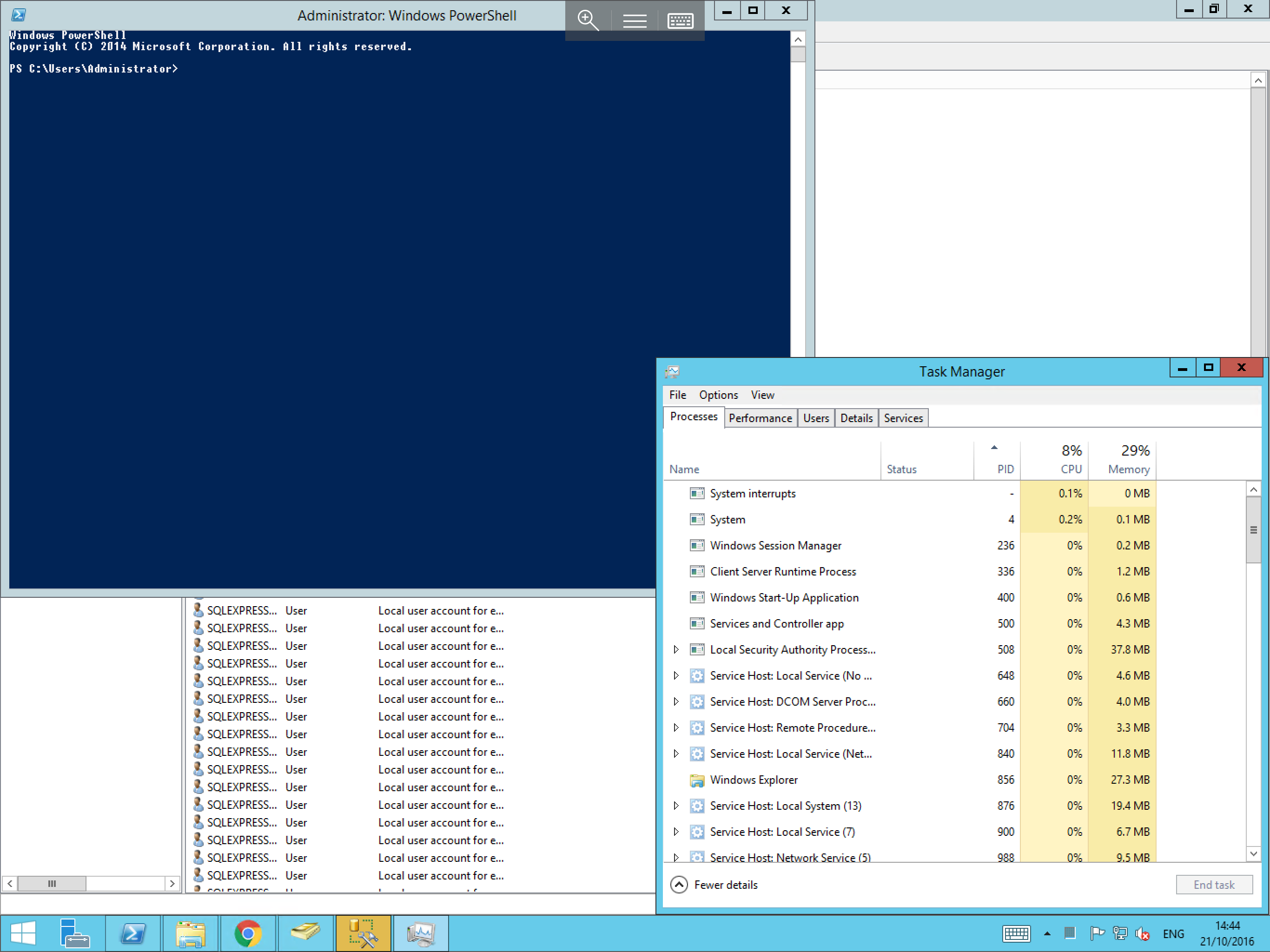
You will now be presented with the Task Manager. Select the Processes tab from the top line as below:
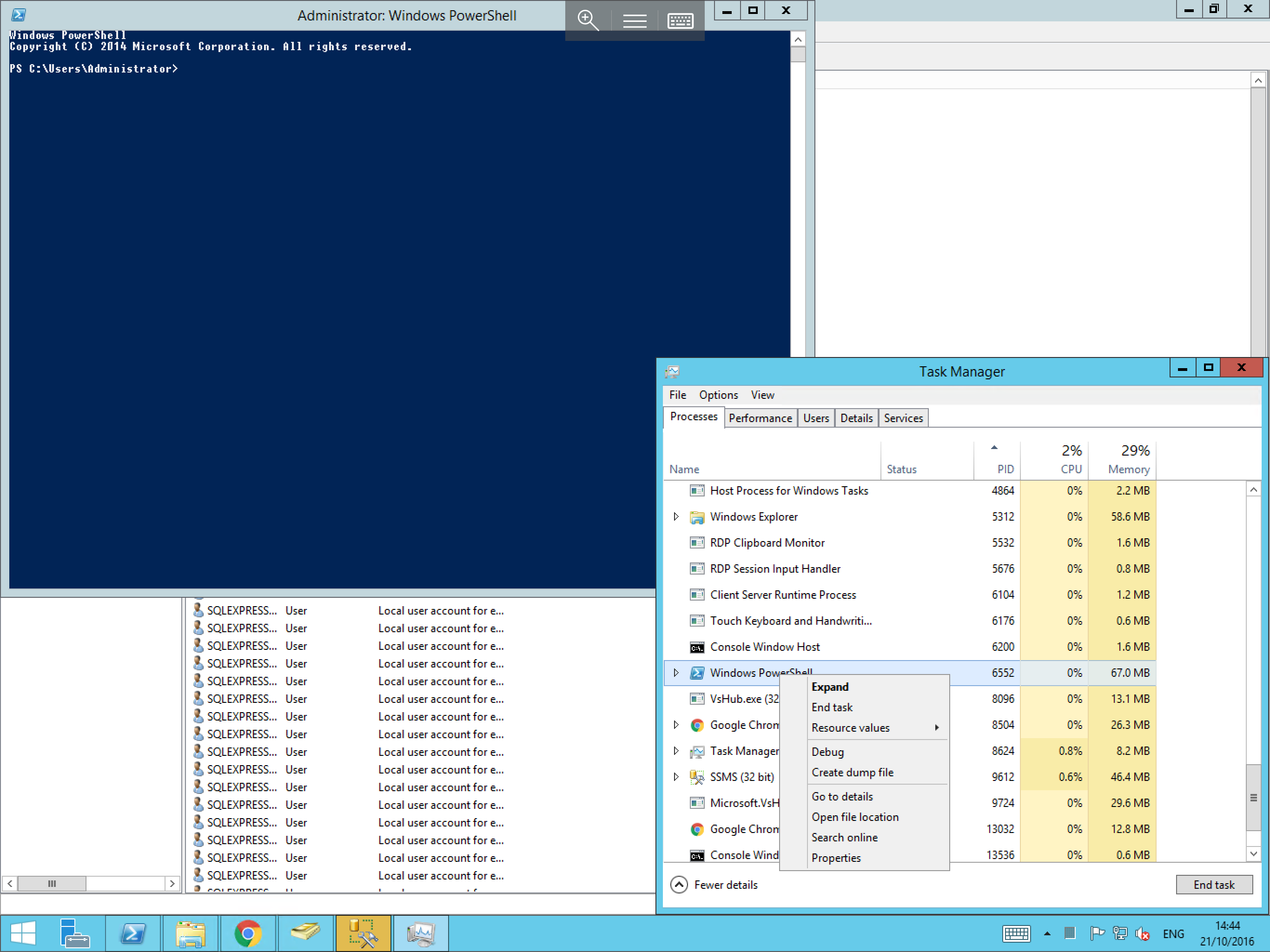
Scroll down the list until you find the process which you wish to end. Right click the process and select End task as below:
End a process using the tasklist and taskkill commands
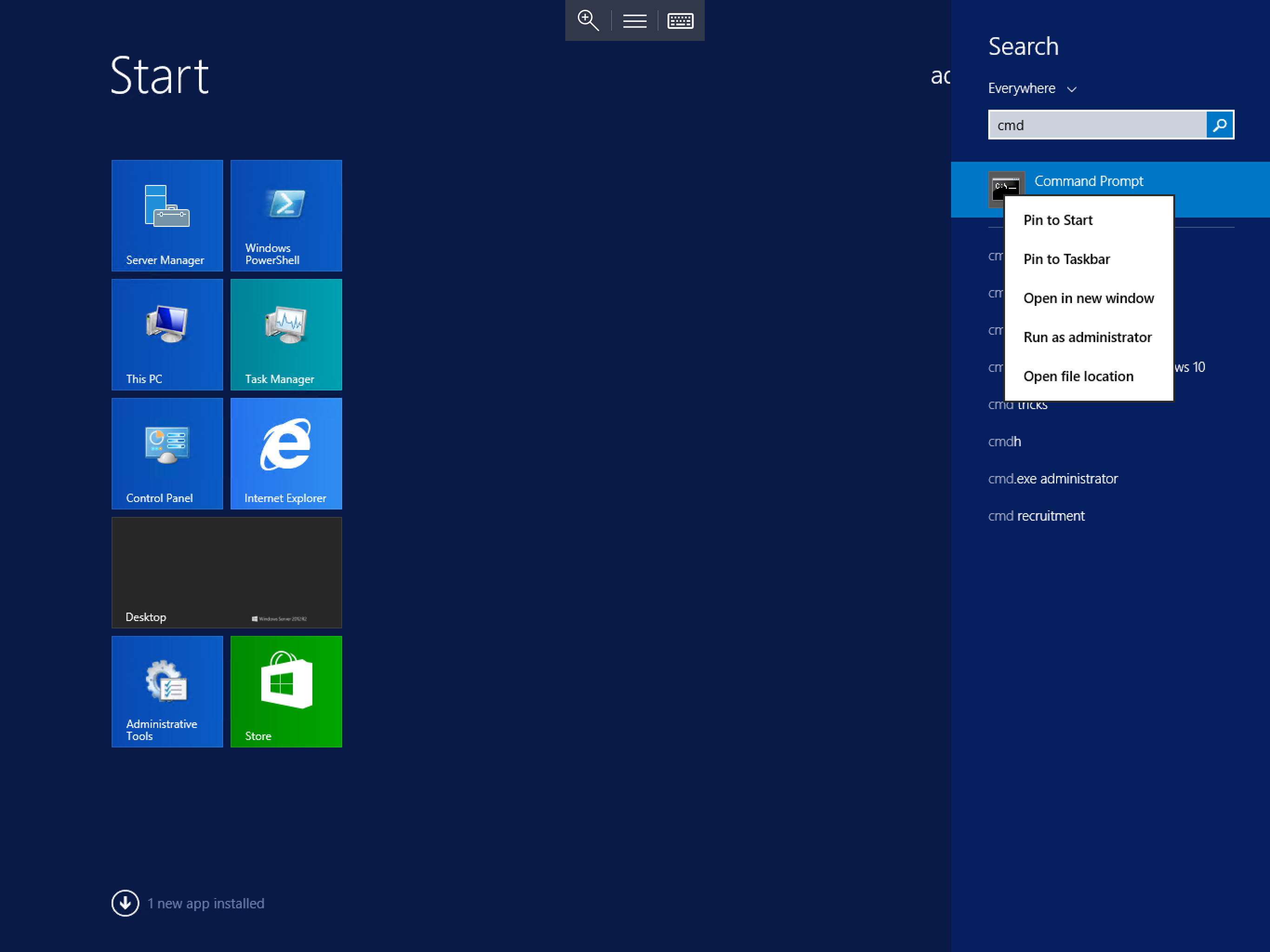
To forcibly end a process using the command line, select the Start menu, and type cmd, right click the resultant cmd.exe and select Run as administrator as below:
In the Command Prompt, type tasklist and press Enter. This will display a list of running processes, as below. Locate the process which you wish to end in the list and make a note of the name or the PID.
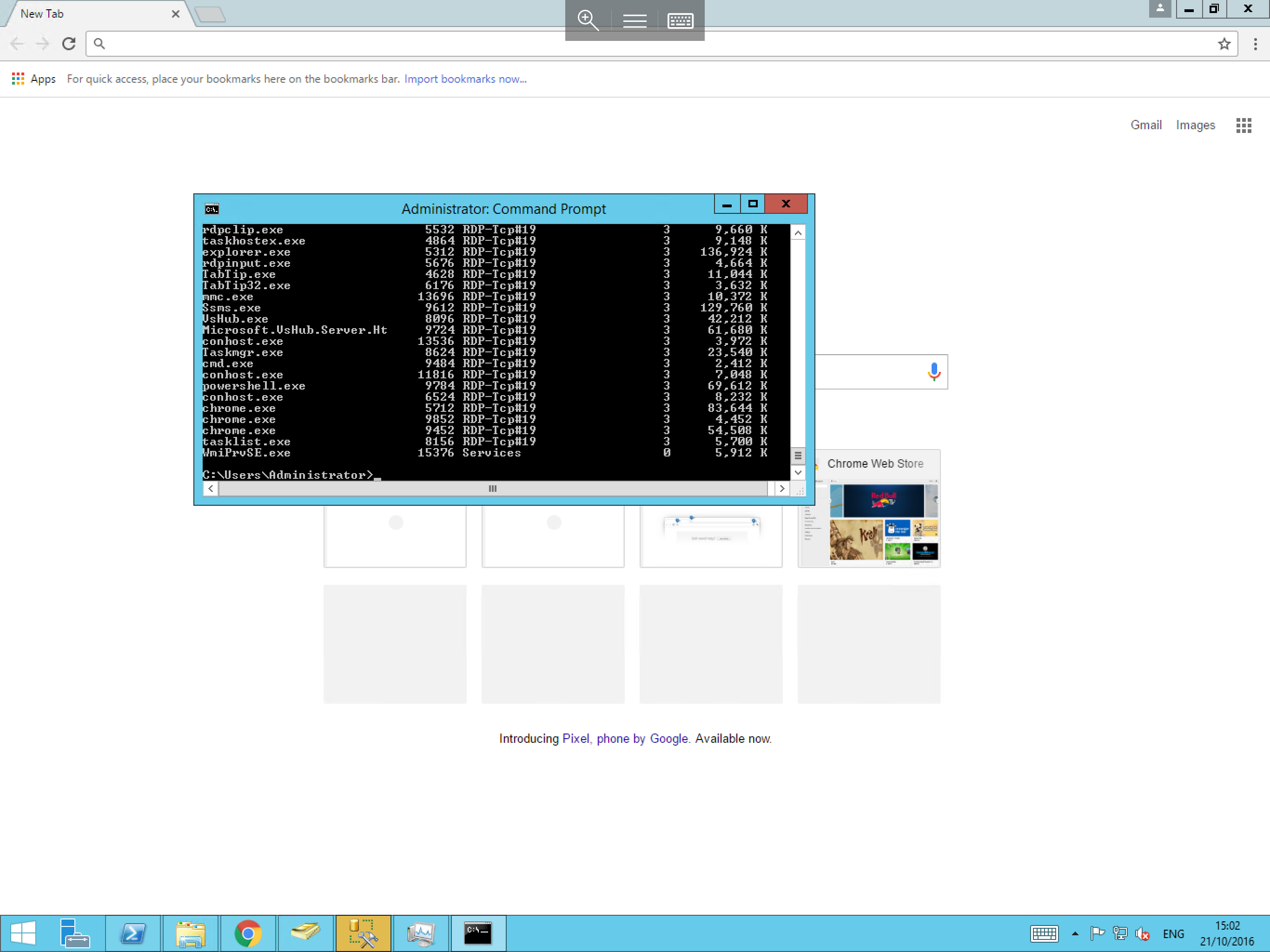
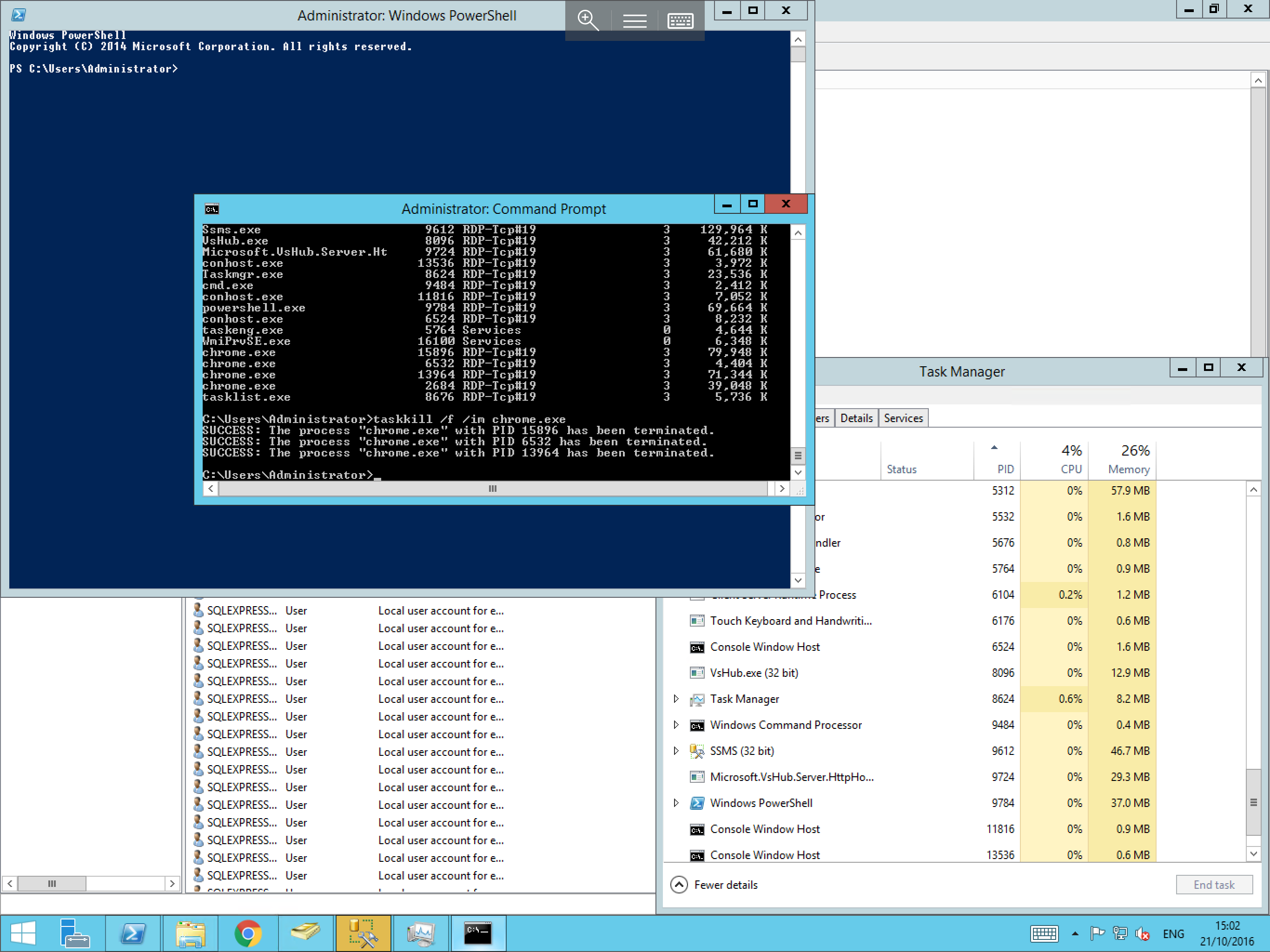
Now in the command line, type either taskkill /f /im <process name> and press Enter to end a process by its name, or taskkill /f /PID <number of pid> and press Enter to end a process by its PID.
For example (By Name) taskkill /f /im chrome.exe as below or (By PID) taskkill /f /PID 15896
For the full command line syntax of tasklist and taskkill, please visit the respective link below: