Protecting against Meltdown & Spectre in Windows
Microsoft have released a security patch to provide protection against the Meltdown and Spectre vulnerabilities that affect a large number of CPU chipsets.
These updates will be pushed out through the regular Windows Update channels once further testing has been undertaken. If you would like to manually install the patch, you can perform the steps below:
Manual installation
The patches for Windows Server 2008 R2, 2012 R2 and 2016 can be downloaded directly from the Microsoft Update Catalog. These links are provided below:
The basic walk-through for manually installing the patch is provided below.
Screenshots shown are from Windows Server 2012 R2, however the process is similar for Windows Server 2008 R2 and 2016.
Follow the above link for your specific operating system and click Download on the patch relevant to your operating system.
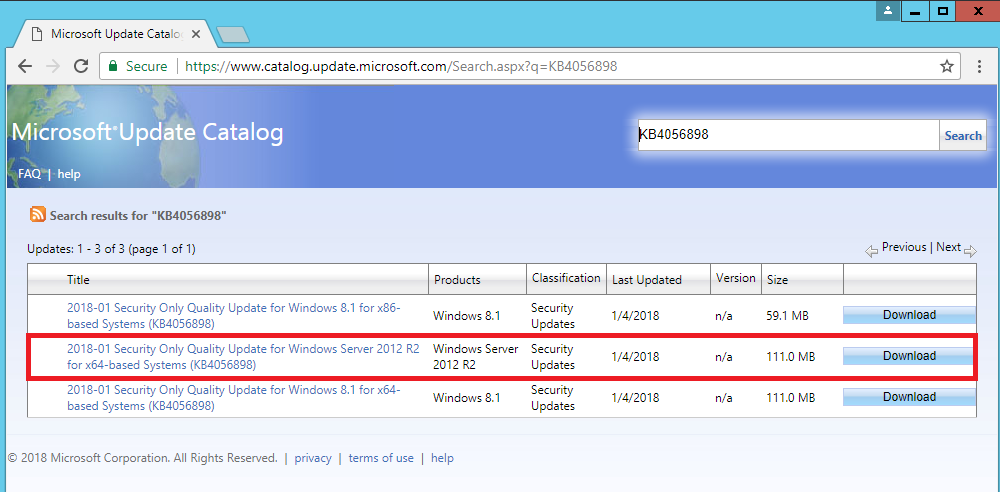
This will download the patch to your downloads folder by default. You can then browse to your download location and click to install the patch.
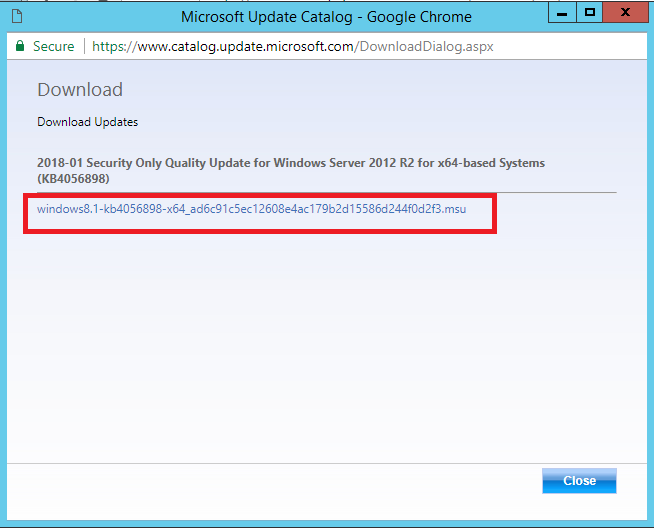
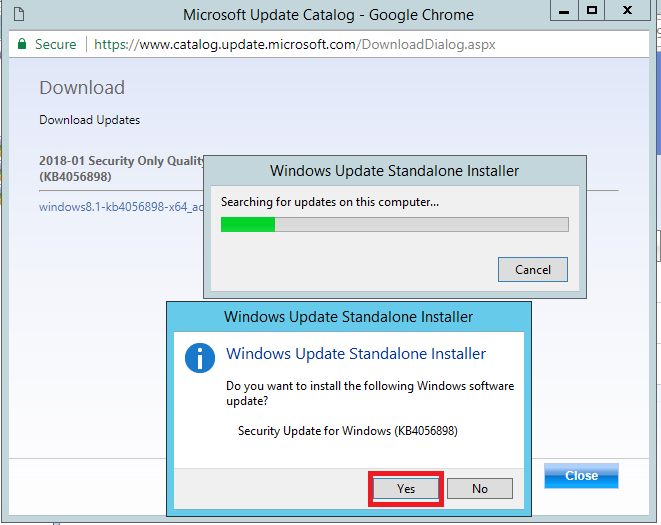
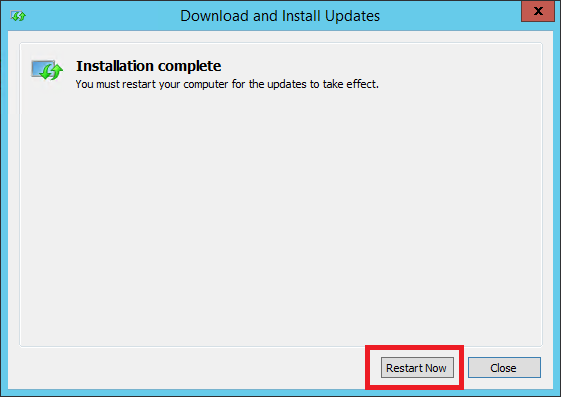
Run through the installation. When complete, you will need to reboot your machine for the patch to take effect.
Enable the registry keys
Once the patch has been applied and the updates have been installed, you will need to add two registry keys to enable the mitigations on the server. This is per the Microsoft documentation.
Open a CMD Prompt as Administrator and run the following two commands, one after another. This will add the relevant registry keys to enable the mitigation. Always backup the registry before making changes. If you are an ANS customer and are not comfortable making these changes, please seek assistance from our support team by raising a support request in ANS Glass.
reg add "HKEY_LOCAL_MACHINE\SYSTEM\CurrentControlSet\Control\Session Manager\Memory Management" /v FeatureSettingsOverride /t REG_DWORD /d 0 /f

reg add "HKEY_LOCAL_MACHINE\SYSTEM\CurrentControlSet\Control\Session Manager\Memory Management" /v FeatureSettingsOverrideMask /t REG_DWORD /d 3 /f
For further information, please refer to the Microsoft documentation.
Automatic installation
Once testing has been completed, this security patch will be deployed automatically for any ANS customers who follow our automatic update schedule and have a compatible anti-virus, as per the Microsoft patch requirements. The patch will be pushed out through the standard Windows Update system.
If your anti-virus version is not compatible with the patch, then the update will not be made available through Windows Update. Please contact your anti-virus vendor for further information. If you use McAfee then this article may help.
Checking for Windows Updates
If you don't have automatic updates scheduled on your ANS servers, here's how to check for Windows Server updates manually.
Windows Server 2008 R2
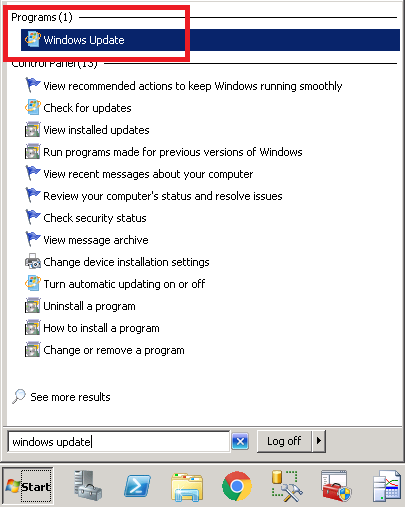
Click Start and type Windows Update to search for the Windows Update utility.
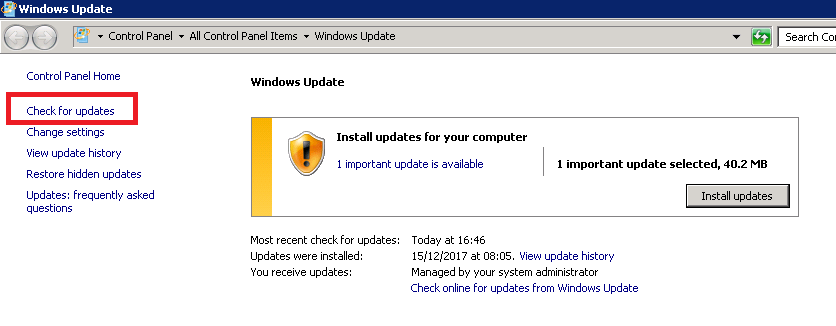
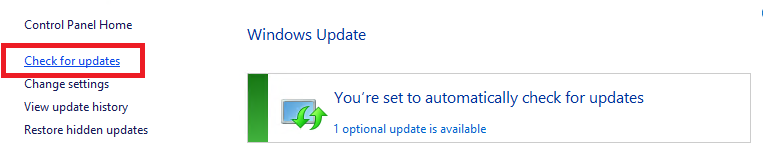
In Windows Updates, you can click on the Check for Updates option on the left hand menu to check for any newly released updates.
Windows Server 2012 R2
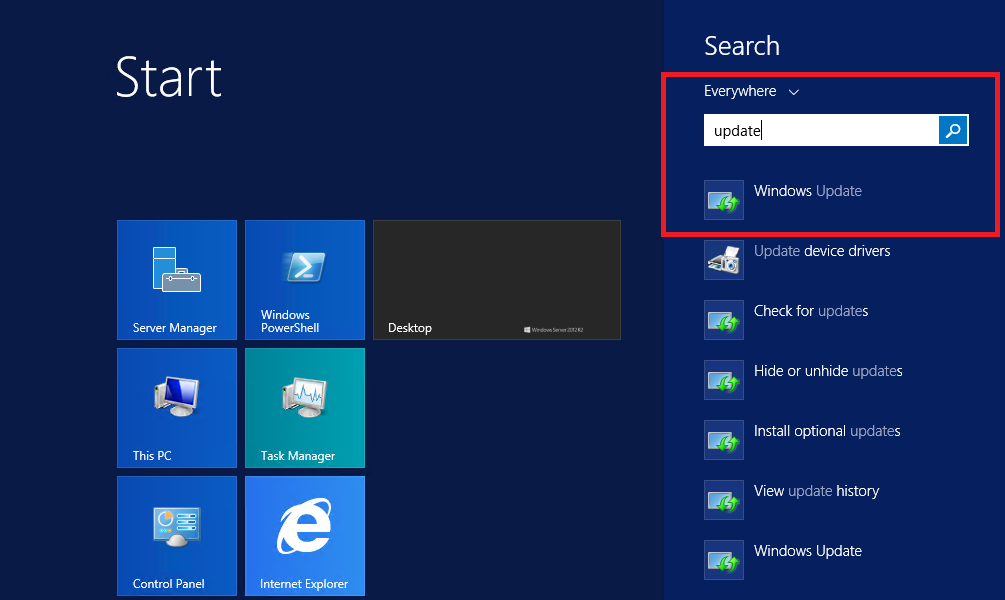
- Click
Start, and typeUpdates, and then click onWindows Updates.
- You can now select the
Check for Updatesbutton on the left, which will perform an check for any newly released Windows Updates.
Windows Server 2016
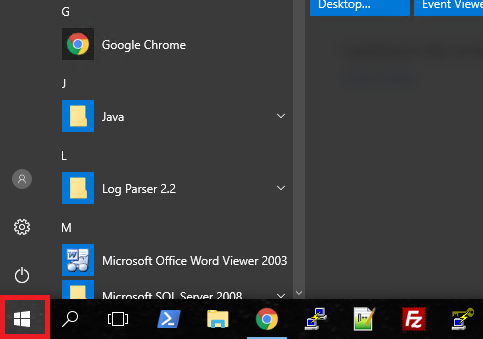
- Click
Startand typeWindows Updatein the search bar.
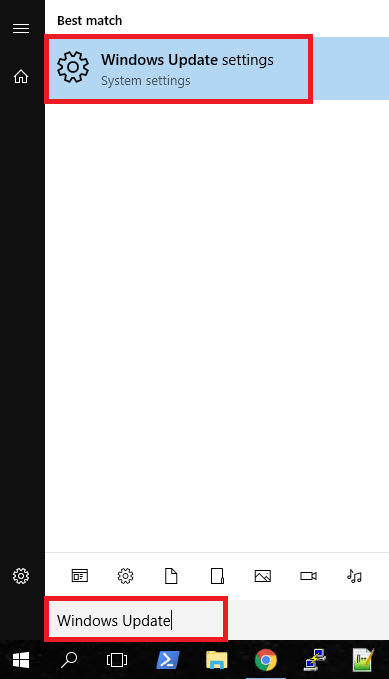
- Click on
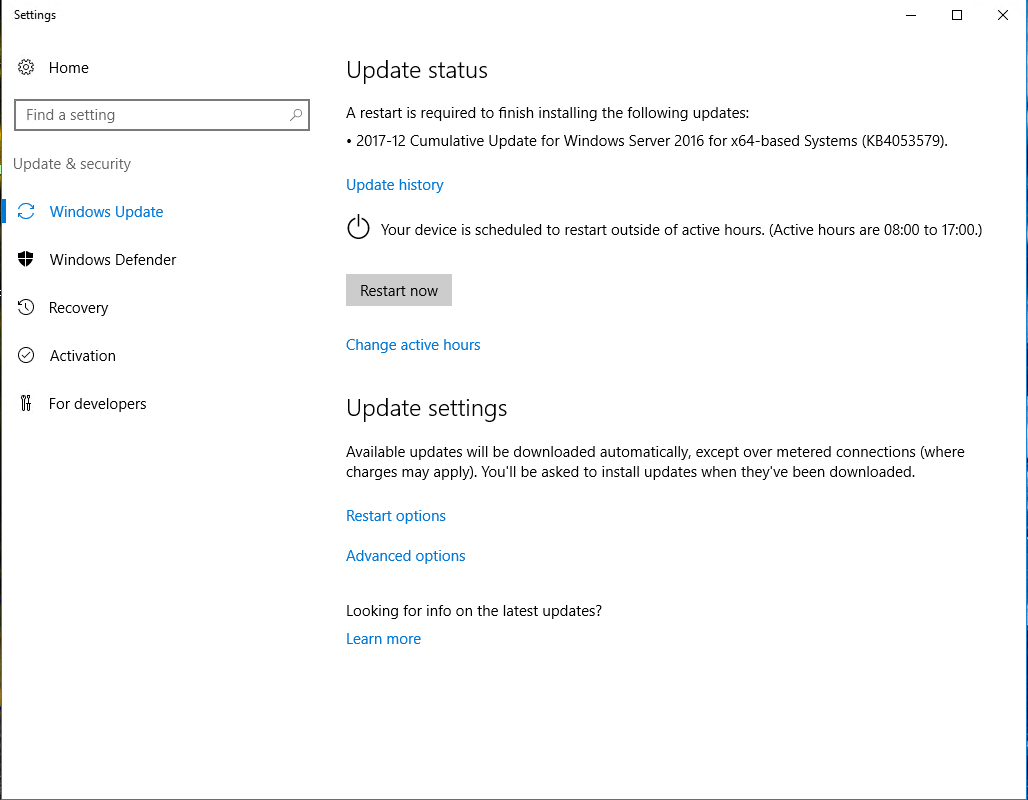
Windows Update Settings, from here you can check for any new updates.